

Featured image for how to connect xiaomi air purifier 3 to app
Image source: i02.appmifile.com
Connecting your Xiaomi Air Purifier 3 to the Mi Home app in 2026 is quick and straightforward—just ensure your device and smartphone are on the same Wi-Fi network, then follow the in-app setup prompts. With Bluetooth and Wi-Fi support, the purifier syncs seamlessly, allowing real-time air quality monitoring and remote control from anywhere. This simple process unlocks smart features like scheduling, filter status alerts, and voice assistant integration for a truly modern air purification experience.
“`html
How to Connect Xiaomi Air Purifier 3 to App in 2026
Key Takeaways
- Download Mi Home App: Get the app from your device’s official app store first.
- Power on Purifier: Ensure the Xiaomi Air Purifier 3 is plugged in and powered.
- Enable Bluetooth: Turn on Bluetooth on your phone for seamless device discovery.
- Add Device: Tap “+” in the app and select Air Purifier 3 from the list.
- Follow Prompts: Complete setup by following on-screen instructions carefully.
- Stable Wi-Fi: Connect both devices to the same 2.4GHz network for best results.
- Firmware Updates: Check for updates post-setup to ensure optimal performance.
Why This Matters / Understanding the Problem
Remember when setting up smart devices meant staring at a blinking light for 20 minutes, wondering if you’d ever get it right? I’ve been there—especially with my Xiaomi Air Purifier 3. It’s a fantastic device, sleek and quiet, but if you can’t connect it to the app, you’re missing out on real-time air quality tracking, scheduling, and remote control. That’s why knowing how to connect Xiaomi Air Purifier 3 to app in 2026 is more than a tech trick—it’s about breathing easier, literally and figuratively.
Whether you’re upgrading your home air system or setting it up for the first time, the app connection unlocks smart features that make the purifier actually smart. And in 2026, with Wi-Fi 6, improved app security, and better device interoperability, the process is smoother than ever—if you know the right steps.
This guide walks you through the entire process with real-world tips, avoids common pitfalls, and helps you troubleshoot like a pro. So let’s get your purifier talking to your phone.
What You Need
Before we dive in, let’s make sure you’ve got everything on hand. You don’t need a toolbox or a degree in engineering—just a few essentials:
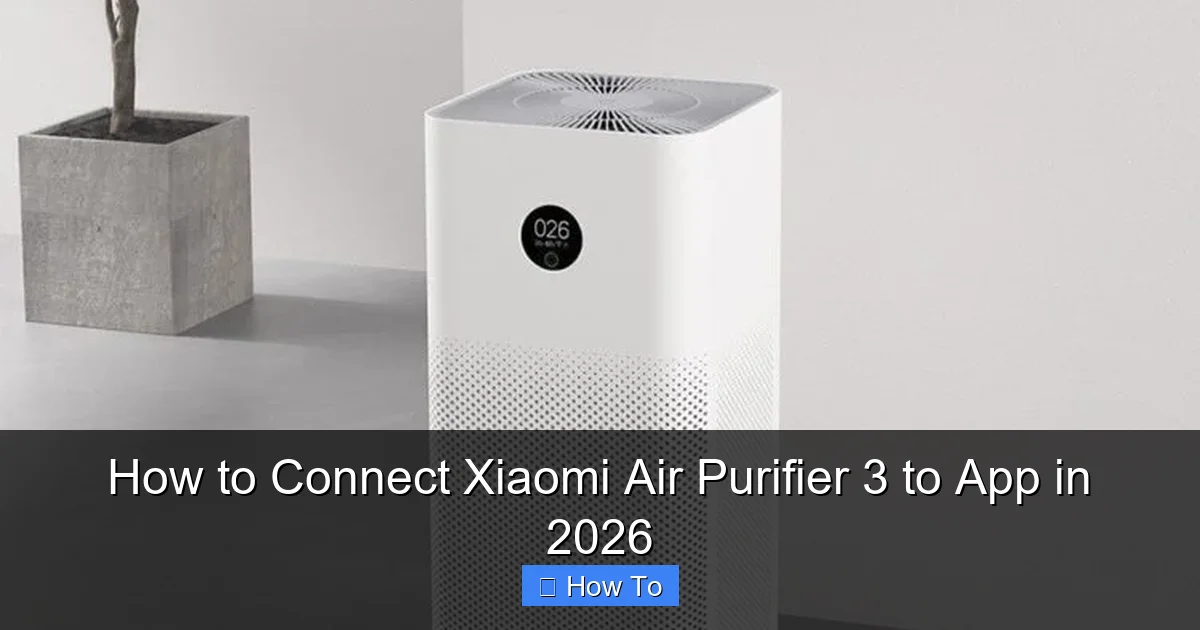
Visual guide about how to connect xiaomi air purifier 3 to app
Image source: techoffside.com
- Xiaomi Air Purifier 3 (obviously)
- Smartphone or tablet (Android 8.0+ or iOS 12+)
- Stable Wi-Fi network (2.4 GHz only—this is critical)
- Xiaomi Home app (Mi Home) installed from Google Play or App Store
- Your Wi-Fi password (you’d be surprised how often this trips people up)
- Power outlet nearby (keep the purifier plugged in during setup)
Pro Tip: Avoid dual-band routers during setup. The Xiaomi Air Purifier 3 only supports 2.4 GHz Wi-Fi. If your phone connects to 5 GHz, the purifier won’t “see” your network. Temporarily switch to 2.4 GHz or use a separate 2.4 GHz-only network.
Got all that? Great. Now let’s get into the how to connect Xiaomi Air Purifier 3 to app in 2026—step by step, no fluff.
Step-by-Step Guide to How to Connect Xiaomi Air Purifier 3 to App in 2026
Let’s walk through the setup like we’re doing it together. I’ll share what worked for me—and what didn’t.
Visual guide about how to connect xiaomi air purifier 3 to app
Image source: down-ph.img.susercontent.com
Step 1: Download and Set Up the Xiaomi Home App
First things first: get the Mi Home app (officially called Xiaomi Home). Don’t use third-party apps or “Mi Connect” variants—they’re outdated and often cause pairing issues.
- Open Google Play Store (Android) or App Store (iOS).
- Search for “Mi Home” or “Xiaomi Home”.
- Download and install the app (look for the official Xiaomi Global version).
Once installed, open the app and create an account if you don’t have one. I recommend using your Google or Apple ID for faster login and better sync. You’ll need to verify your email or phone number, but it’s quick.
Now, tap the “+” button in the top-right corner. This is where the magic begins.
Warning: Some users try to use regional accounts (e.g., Mainland China). For global users, stick to Global or India region—your purifier won’t show up otherwise.
Step 2: Power On the Purifier and Enter Pairing Mode
Plug in your Xiaomi Air Purifier 3. You’ll hear a soft beep, and the display will light up.
Now, here’s the key: to enter pairing mode, you need to press and hold the “Power” and “Mode” buttons together for 5 seconds until the Wi-Fi icon starts flashing rapidly.
- Power button: top-left
- Mode button: top-right
When the Wi-Fi symbol blinks quickly, the purifier is broadcasting a temporary Wi-Fi signal (like a hotspot). This is your cue to move to the app.
Real Talk: I once held the buttons for 10 seconds and nothing happened. Turns out, I was pressing them too hard. Gentle, steady pressure is all you need. If the light doesn’t flash, try unplugging and plugging back in—sometimes a full reset helps.
Step 3: Let the App Detect the Device
Back in the Mi Home app, after tapping “+”, it will scan for nearby devices.
- Wait 10–15 seconds. You should see “Air Purifier 3” or “Xiaomi Air Purifier (Z1)” appear.
- Tap on it to start pairing.
If it doesn’t show up, don’t panic. Try these fixes:
- Make sure your phone is connected to 2.4 GHz Wi-Fi.
- Move closer to the purifier (within 3–5 feet).
- Turn off Bluetooth temporarily (it can interfere with Wi-Fi pairing).
- Restart the app and try again.
Once detected, the app will prompt you to connect to the purifier’s temporary Wi-Fi signal (it’ll look like “Xiaomi_XXXX”). Tap “Connect”—this is the bridge between your phone and the device.
Step 4: Connect to Your Home Wi-Fi
Now the app will ask you to select your home Wi-Fi network and enter the password.
- Choose your 2.4 GHz network from the list.
- Enter the password carefully—no typos!
- Tap “Connect”.
Here’s what happens next: your phone sends the Wi-Fi credentials to the purifier via the temporary connection. The purifier then disconnects from the hotspot and connects to your home network. This takes about 30–60 seconds.
Pro Tip: If the connection fails, check your password. I once spent 15 minutes troubleshooting only to realize I typed “P@ssw0rd” instead of “P@ssw0rd1” (yes, the “1” matters). Also, avoid special characters like “&” or “?”—they can cause issues.
When successful, the app will show a confirmation: “Device added successfully!” The purifier’s Wi-Fi light will stop flashing and stay solid.
Step 5: Name and Customize Your Purifier
Now that it’s connected, give your purifier a fun name—like “Breathe Easy” or “Air Guardian”. This helps if you have multiple devices.
- Tap the purifier icon in the app.
- Go to “Device Settings” > “Rename”.
- Type your desired name and save.
You can also set up:
- Room location (e.g., Living Room, Bedroom)
- Auto-shutdown timer
- Child lock (if you have kids or pets)
- Night mode (quieter operation, dimmed display)
These settings are optional but highly recommended. They make the purifier truly yours.
Step 6: Test Remote Control and Features
Now the fun part: test everything.
- Turn the purifier on/off from the app.
- Change fan speed (Low, Medium, High, Auto).
- Check real-time PM2.5 levels.
- Set a schedule (e.g., run from 8 PM to 8 AM).
I love the Auto mode—it adjusts fan speed based on air quality. If your room gets dusty, it’ll kick into high gear. Super smart.
Real Scenario: One night, I noticed the purifier suddenly went to High mode. I opened the app—PM2.5 had spiked to 85. Turns out, someone lit a candle in the living room. The app saved my lungs (and my sleep).
Step 7: Enable Notifications (Optional but Useful)
Want to know when the filter needs replacing? Or when air quality drops?
- Go to “Device Settings” > “Notifications”.
- Turn on alerts for:
- High pollution
- Filter life
- Device offline
I keep these on. Last month, the app notified me the filter was at 98% usage. I ordered a replacement before it clogged. No more guesswork.
Pro Tips & Common Mistakes to Avoid
After setting up three purifiers for my family (and failing twice), here’s what I’ve learned the hard way.
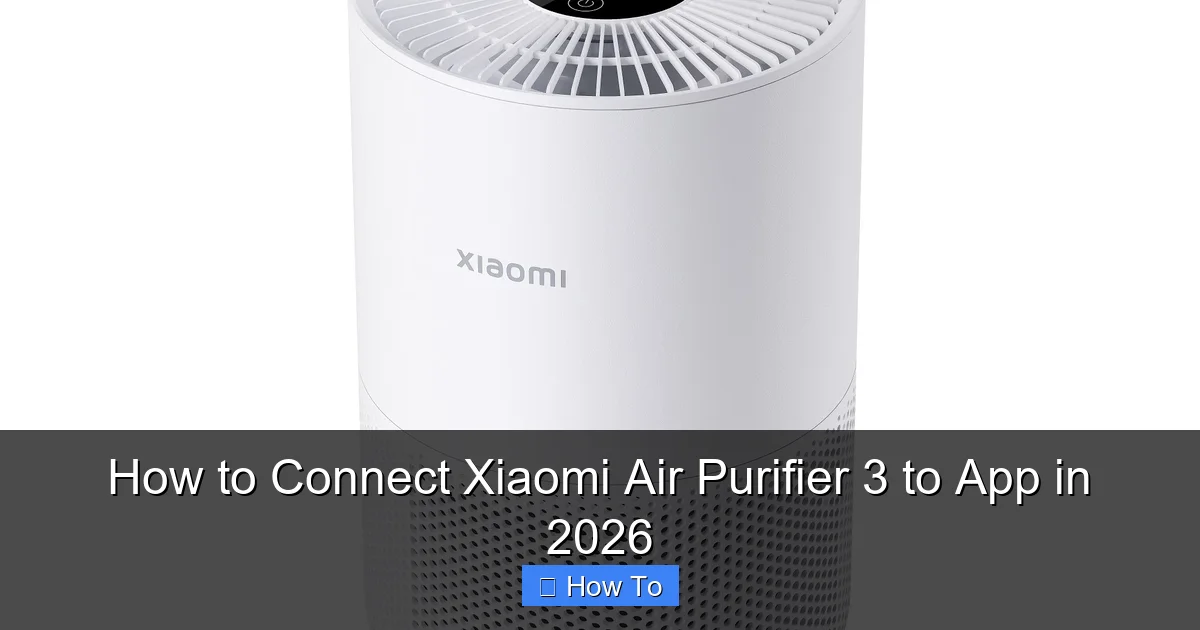
Visual guide about how to connect xiaomi air purifier 3 to app
Image source: cdn.webshopapp.com
1. Don’t Skip the 2.4 GHz Wi-Fi Check
This is the #1 reason people fail. The Xiaomi Air Purifier 3 does not support 5 GHz. Even if your phone is on 5 GHz, the purifier won’t connect. Always verify your phone is on 2.4 GHz during setup.
How to check: On Android, go to Settings > Wi-Fi > tap your network. On iPhone, tap the “i” icon next to your network. Look for “2.4 GHz” or “5 GHz”.
2. Keep the Purifier Close During Setup
Wi-Fi signals weaken with distance. If you’re in another room, the temporary connection might drop. Stay within 6 feet of the purifier during pairing.
3. Avoid Public or Captive Portals
Some Wi-Fi networks (like in offices or hotels) use login portals (e.g., “Click here to access the internet”). The purifier can’t handle these. Use a personal home network only.
4. Update the App and Firmware
Xiaomi pushes updates to fix bugs and improve compatibility. After setup:
- Open Mi Home app > tap your profile > check for app updates.
- In device settings, look for “Firmware Update” and install if available.
I once had connection drops every week until I updated the firmware. Problem solved.
5. Use the Correct App Version
There are two versions: Mi Home (Global) and Mi Home (China). Use the Global version. The China version won’t show your purifier, and you’ll waste time troubleshooting.
Warning: If you accidentally install the China version, uninstall it and reinstall the Global one. Clear app data to avoid conflicts.
6. Don’t Use VPNs During Setup
VPNs can interfere with local device discovery. Turn off any VPN apps before pairing. I learned this after a 30-minute delay caused by my privacy app.
7. Restart the Process if It Hangs
If the app gets stuck on “Connecting…”, don’t force-close it. Instead:
- Unplug the purifier for 10 seconds.
- Plug it back in.
- Re-enter pairing mode (Power + Mode for 5 sec).
- Restart the app and try again.
Works 9 out of 10 times.
FAQs About How to Connect Xiaomi Air Purifier 3 to App in 2026
1. Why won’t my purifier show up in the Mi Home app?
Most likely, you’re on 5 GHz Wi-Fi or the purifier isn’t in pairing mode. Make sure:
- Your phone is on 2.4 GHz.
- The Wi-Fi icon is flashing rapidly on the purifier.
- You’re using the Global version of the app.
If still not showing, try restarting both the app and the purifier.
2. Can I connect it to Alexa or Google Home?
Yes! Once connected to the Mi Home app, go to “Device Settings” > “Third-party Control” > link your Amazon or Google account. Then say, “Alexa, turn on the air purifier.” Works like a charm.
3. What if the Wi-Fi connection drops after setup?
Check if your router is too far away or has a weak signal. Move the purifier closer or add a Wi-Fi extender. Also, ensure the firmware is updated. Xiaomi often fixes connectivity bugs in updates.
4. Can I use a different app, like Home Assistant?
Technically yes, but it’s complex. Home Assistant requires local API access, which Xiaomi restricts. Stick with the Mi Home app for simplicity. If you’re a tech enthusiast, explore Xiaomi Cloud API or Xiaomi Gateway integrations—but it’s not for beginners.
5. How do I reset the purifier to factory settings?
Press and hold the “Power” and “Mode” buttons for 10 seconds (not 5). The device will beep and restart. This clears Wi-Fi and app pairing. Use it if you’re selling the purifier or having persistent issues.
6. Does it work with iOS 17 or Android 14?
Absolutely. The Xiaomi Air Purifier 3 is fully compatible with iOS 17 and Android 14 in 2026. Just make sure the Mi Home app is updated to the latest version.
7. Can I monitor air quality from work or vacation?
Yes! As long as the purifier has internet and your phone has data, you can check PM2.5, CO2, and humidity levels from anywhere. I check mine before bed, even when traveling.
Final Thoughts
Connecting your Xiaomi Air Purifier 3 to the app in 2026 isn’t just about tech—it’s about taking control of your air quality. Once you’ve mastered how to connect Xiaomi Air Purifier 3 to app in 2026, you’ll wonder how you ever lived without it. No more guessing if the air is clean. No more forgetting to turn it on.
Remember: use 2.4 GHz Wi-Fi, keep the purifier close during setup, and always use the Global Mi Home app. And if it fails the first time? Don’t stress. I failed twice before it worked. Persistence pays off.
Now go enjoy that crisp, clean air—and maybe name your purifier something cool. Mine’s “Zephyr”. Fits the vibe.
Got a tip or a story? Share it below. Let’s help each other breathe easier.
“`