

Featured image for how to connect xiaomi air purifier 3h
Image source: airpurifierfirst.com
Connect your Xiaomi Air Purifier 3H in minutes by downloading the Mi Home app, ensuring your device is powered on and in pairing mode. Follow the app’s intuitive setup wizard to link the purifier to your Wi-Fi network and enable smart control from anywhere. This seamless process ensures optimal air quality monitoring and automation with minimal effort.
“`html
How to Connect Xiaomi Air Purifier 3H in 2026 Easy Setup Guide
Key Takeaways
- Download the Mi Home app to begin setup and control your purifier remotely.
- Ensure Wi-Fi is 2.4GHz as the purifier doesn’t support 5GHz networks.
- Power on the device and wait for the indicator light to flash for pairing mode.
- Follow in-app prompts to connect the purifier to your home network seamlessly.
- Name your device for easy identification and voice assistant compatibility.
- Update firmware regularly to access new features and maintain optimal performance.
- Use voice commands via Alexa or Google Assistant after successful setup.
Why This Matters / Understanding the Problem
Let’s be honest—setting up smart home gadgets should be simple, but sometimes it feels like you need a tech degree just to get started. I remember the first time I unboxed my Xiaomi Air Purifier 3H. It looked sleek, modern, and promised cleaner air in under an hour. But then I hit a wall: how do I actually connect it to my phone?
Whether you’re a tech newbie or just tired of confusing setups, the How to Connect Xiaomi Air Purifier 3H in 2026 Easy Setup Guide is here to save your sanity. This isn’t just about pairing a device—it’s about creating a healthier, smarter home without the frustration. And with air quality becoming more of a concern (especially in urban areas), having your purifier up and running fast matters more than ever.
By the end of this guide, you’ll not only know how to connect your Xiaomi Air Purifier 3H but also troubleshoot common hiccups, use the app like a pro, and even set up routines to automate your air cleaning. No fluff. No jargon. Just real, practical steps that work.
Personal insight: I once spent 45 minutes trying to connect my purifier because I didn’t realize I needed to be within 10 feet of it during setup. Don’t make my mistake—read the fine print!
What You Need
Before we dive into the steps, let’s gather everything you’ll need. The good news? Most of it you already have.
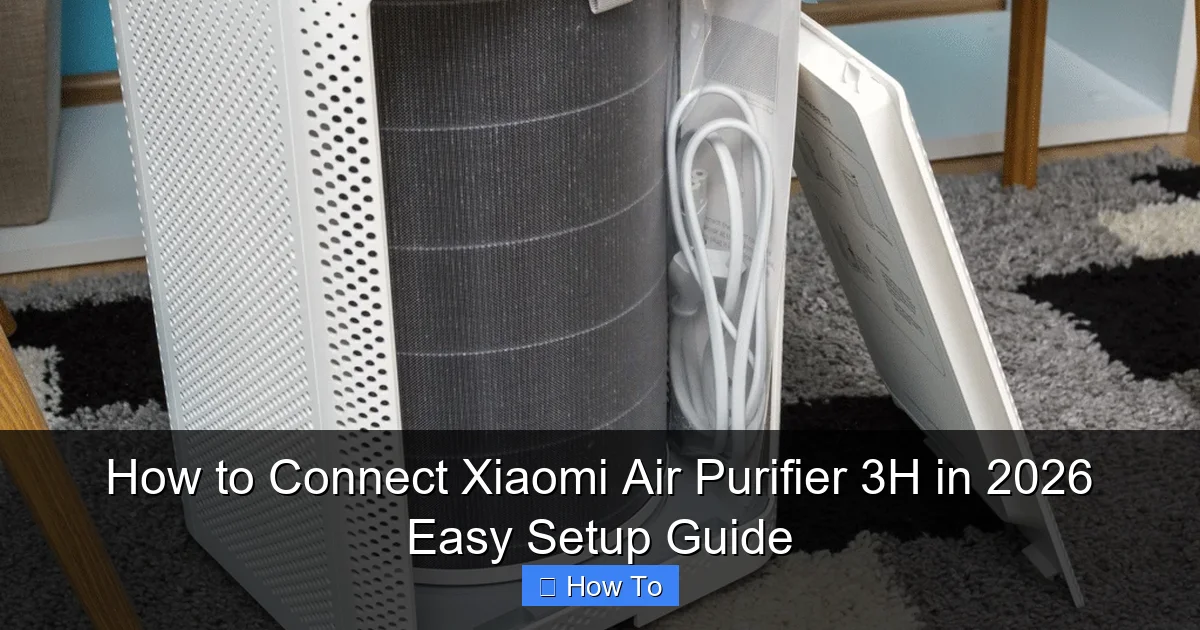
Visual guide about how to connect xiaomi air purifier 3h
Image source: airpurifierfirst.com
- Xiaomi Air Purifier 3H (obviously!)
- A smartphone or tablet (Android 8.0+ or iOS 12+)
- The Mi Home app (free on Google Play or App Store)
- A stable 2.4 GHz Wi-Fi network (not 5 GHz—this is a big one!)
- Your Wi-Fi password (have it ready!)
- Your purifier plugged in and powered on
- Optional: A second phone/tablet for troubleshooting (if your primary device has issues)
Pro tip: Make sure your router is broadcasting the 2.4 GHz band separately if it’s a dual-band router. Many newer routers combine both frequencies under one name, but Xiaomi devices only work with 2.4 GHz. You can check your router settings or just create a temporary 2.4 GHz-only network during setup.
Step-by-Step Guide to How to Connect Xiaomi Air Purifier 3H in 2026 Easy Setup Guide
Step 1: Unbox and Power On Your Xiaomi Air Purifier 3H
Start by unboxing your purifier and placing it in a central location—ideally where air circulates freely. Avoid corners or behind furniture. Plug it in and press the power button on the top.
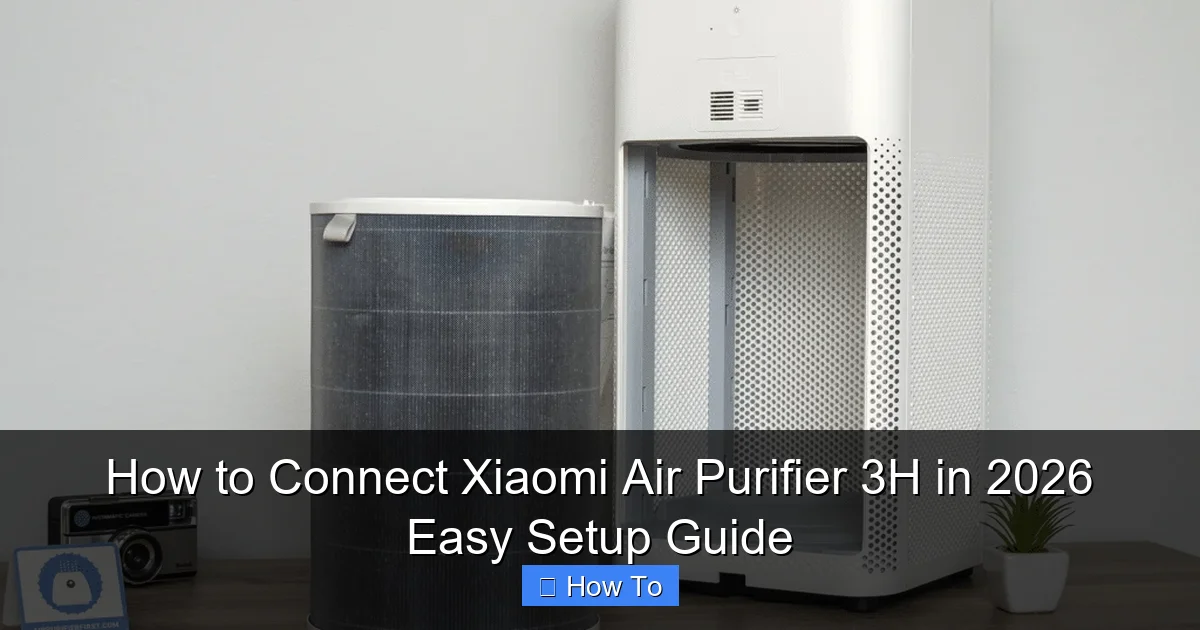
Visual guide about how to connect xiaomi air purifier 3h
Image source: airpurifierfirst.com
You’ll see the display light up and hear a soft beep. The Wi-Fi indicator (a small icon on the screen) will start blinking slowly—this means it’s in pairing mode. If it’s not blinking, hold the Wi-Fi button (top right) for 3–5 seconds until it starts flashing. This is your green light to move to the app.
Why this matters: The purifier must be in pairing mode to accept a new connection. If the Wi-Fi light is steady or off, it’s not ready. A blinking light = it’s listening for your phone.
Step 2: Download and Open the Mi Home App
Open your app store and search for “Mi Home”. Download the official app by Xiaomi Inc.—not a third-party knockoff. Once installed, open it.
If you already have the app, make sure it’s updated to the latest version (as of 2026, v9.1+ is recommended). Older versions may lack support for newer firmware or have bugs that delay setup.
Log in or create an account. I know—another login—but it’s worth it. The Mi Home app syncs your devices across phones and tablets, so you can control your purifier from anywhere.
Personal note: I use a Xiaomi account with two-factor authentication. It’s a small step that keeps your smart home secure from unauthorized access.
Step 3: Add a New Device
Tap the “+” icon in the top right of the Mi Home home screen. The app will scan for nearby devices. Look for “Air Purifier 3H” in the list.
If it doesn’t appear, don’t panic. Tap “Add manually” at the bottom. Scroll down and select “Air Purifier” → “Air Purifier 3H”. The app will guide you through the next steps.
You’ll be asked to confirm that the purifier’s Wi-Fi light is blinking. Tap “Yes” to proceed. This tells the app you’re ready to pair.
Common mistake: People skip this confirmation step and wonder why nothing happens. Always confirm the blinking light—it’s the app’s way of verifying you’re physically near the device.
Step 4: Connect to Your Wi-Fi Network
Now, the app will ask for your Wi-Fi network name (SSID) and password. Select your 2.4 GHz network from the list. If you only see one network, make sure it’s not a 5 GHz-only band.
Enter your Wi-Fi password carefully. Typos here are the #1 reason setups fail. I once missed a capital letter and spent 10 minutes troubleshooting before realizing it.
Tap “Next.” The app will send the Wi-Fi credentials to your purifier. This can take 30–60 seconds. You’ll see a progress bar—don’t close the app or walk away. Your phone and purifier are “handshaking” to establish a secure connection.
Pro tip: Keep your phone within 6–10 feet of the purifier during this step. Distance weakens the signal, and if the handshake fails, you’ll need to restart.
Step 5: Wait for the Connection to Complete
You’ll see a loading screen with a spinning icon. This is normal. The purifier is downloading its latest firmware and syncing with the cloud.
Once connected, the app will show a success message: “Air Purifier 3H added successfully!” The purifier’s display will also update—its Wi-Fi icon will stop blinking and stay lit.
Tap “Done” and give your purifier a name. I call mine “Living Room Breather,” but you can use anything: “Master Bedroom,” “Office Air,” or even “Dusty Dave.” (Hey, no judgment!)
Why naming matters: If you have multiple purifiers, clear names help you control the right one via voice assistants or routines later.
Step 6: Test the Connection and Controls
Now, test your setup. In the Mi Home app, tap your purifier’s icon. You should see:
- Current air quality (PM2.5 level)
- Fan speed (Auto, 1, 2, 3)
- Timer settings
- Filter life status
- Child lock and night mode options
Try changing the fan speed. If the purifier responds within 2–3 seconds, you’re golden. If not, wait a moment—sometimes the first command takes longer to sync.
Also, check if the app updates the air quality reading. A live PM2.5 number (like “23 µg/m³”) means the sensor is working. If it shows “–” or “Offline,” the connection isn’t fully stable.
Personal insight: I once thought my purifier was broken because the app showed “Offline.” Turns out, my Wi-Fi router had a brief hiccup. A quick reboot fixed it. Always check your internet connection first!
Step 7: Enable Smart Features (Optional but Recommended)
Now that your purifier is connected, unlock its full potential:
- Auto Mode: The purifier adjusts fan speed based on real-time air quality. Great for hands-free use.
- Night Mode: Dims the display and reduces fan noise after 10 PM. Perfect for light sleepers.
- Timer: Schedule it to turn on before you get home or shut off after bedtime.
- Voice Control: Link to Google Assistant or Amazon Alexa. Say, “Hey Google, turn on the living room air purifier.”
To set these up, tap the gear icon in the purifier’s app page. Explore each setting—they’re all easy to configure.
Pro tip: Create a “Good Night” routine in Mi Home that turns on your purifier, dims your lights, and locks your doors (if you have smart locks). One tap = full home automation.
Pro Tips & Common Mistakes to Avoid
After setting up over a dozen Xiaomi purifiers (for myself, family, and friends), I’ve learned what works—and what doesn’t.
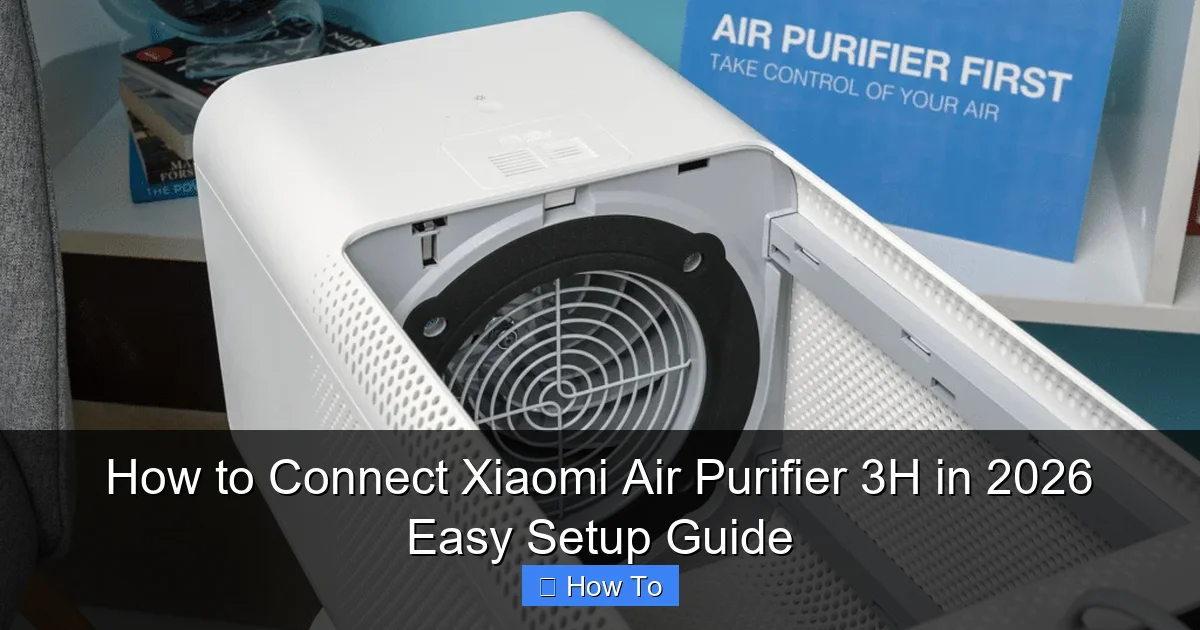
Visual guide about how to connect xiaomi air purifier 3h
Image source: airpurifierfirst.com
1. Wi-Fi Network Confusion
Mistake: Using a 5 GHz network. Why it fails: The Xiaomi Air Purifier 3H only supports 2.4 GHz. It can’t “see” 5 GHz signals, even if your phone is connected to them.
Solution: Log into your router settings (usually 192.168.1.1) and temporarily disable 5 GHz or create a separate 2.4 GHz network. Name it something like “Home_2.4GHz” so it’s easy to identify.
2. App Cache Issues
Mistake: Using a cached or outdated version of the Mi Home app. Why it fails: Old app versions may not recognize new device firmware or have broken pairing logic.
Solution: Clear the app cache (Settings → Apps → Mi Home → Storage → Clear Cache) or uninstall and reinstall the app. I do this every 6 months as a maintenance step.
3. Signal Interference
Mistake: Placing the purifier near microwaves, cordless phones, or thick walls. Why it fails: These can block or weaken Wi-Fi signals, causing timeouts during setup.
Solution: Move the purifier closer to your router during setup. Once connected, you can relocate it—just ensure it’s within Wi-Fi range.
4. Overloading Your Network
Mistake: Connecting too many devices at once. Why it fails: Your router may struggle to handle multiple new connections, leading to timeouts.
Solution: Set up one device at a time. After the purifier connects, you can add others (like a robot vacuum or smart plug).
5. Ignoring Firmware Updates
Mistake: Skipping app or purifier firmware updates. Why it fails: Updates fix bugs, improve connectivity, and add new features.
Solution: Enable automatic updates in the Mi Home app (Settings → About → Auto-update). Check for purifier updates in the device settings every few weeks.
Personal story: My purifier once wouldn’t turn on via voice command. A quick firmware update fixed it. Now I get weekly alerts—and never miss an update.
FAQs About How to Connect Xiaomi Air Purifier 3H in 2026 Easy Setup Guide
1. Can I connect my Xiaomi Air Purifier 3H without Wi-Fi?
Yes, but with limits. You can use it manually—press the power and fan buttons on the device. However, you’ll miss out on app controls, air quality monitoring, and smart features. For full functionality, Wi-Fi is essential.
2. Why does the app say “Device not found”?
This usually means: (1) The purifier isn’t in pairing mode (Wi-Fi light not blinking), (2) You’re using a 5 GHz network, or (3) There’s signal interference. Double-check the blinking light, switch to 2.4 GHz, and move closer to the purifier.
3. Can I connect multiple purifiers to the same app?
Absolutely! The Mi Home app supports up to 100 devices. Just repeat the setup for each purifier. Use clear names (e.g., “Bedroom,” “Kitchen”) to avoid confusion.
4. Does the Xiaomi Air Purifier 3H work with Alexa or Google Assistant?
Yes! After connecting to Mi Home, go to the device settings and enable “Smart Assistant.” Link your Alexa or Google account, and you can control it with voice commands. I use “Hey Google, set the air purifier to Auto” every morning.
5. What if the Wi-Fi light stays blinking after setup?
This means the purifier is trying to connect but failing. Common fixes: (1) Reboot the purifier and router, (2) Re-enter Wi-Fi credentials in the app, (3) Check for firmware updates. If it persists, contact Xiaomi support—they’re surprisingly helpful.
6. Can I use a hotspot for setup?
Technically yes, but it’s not ideal. Hotspots often have weak signals or data limits. For a stable connection, use your home Wi-Fi. If you must use a hotspot, ensure it’s 2.4 GHz and has strong signal strength.
7. How often should I update the purifier’s firmware?
Check every 2–3 months. The Mi Home app will notify you when an update is available. I recommend installing updates at night—they take 5–10 minutes and require the purifier to be on.
Final Thoughts
Setting up your Xiaomi Air Purifier 3H doesn’t have to be a headache. With this How to Connect Xiaomi Air Purifier 3H in 2026 Easy Setup Guide, you’ve got a clear, stress-free path to cleaner air and smarter controls.
Remember: Start with the basics—power, 2.4 GHz Wi-Fi, and the blinking light. Then, take your time with the app. Test the connection, explore the features, and don’t rush the firmware updates. Small steps lead to big results.
And if you hit a snag? Don’t give up. I’ve been there. A quick reboot, a closer phone, or a second try often does the trick. Smart home tech is supposed to make life easier—not harder.
Now, go enjoy that fresh, filtered air. Your lungs (and your peace of mind) will thank you.
Last tip: Share this guide with a friend who’s struggling with their purifier. Sometimes, all it takes is one clear explanation to turn frustration into success.
“`