
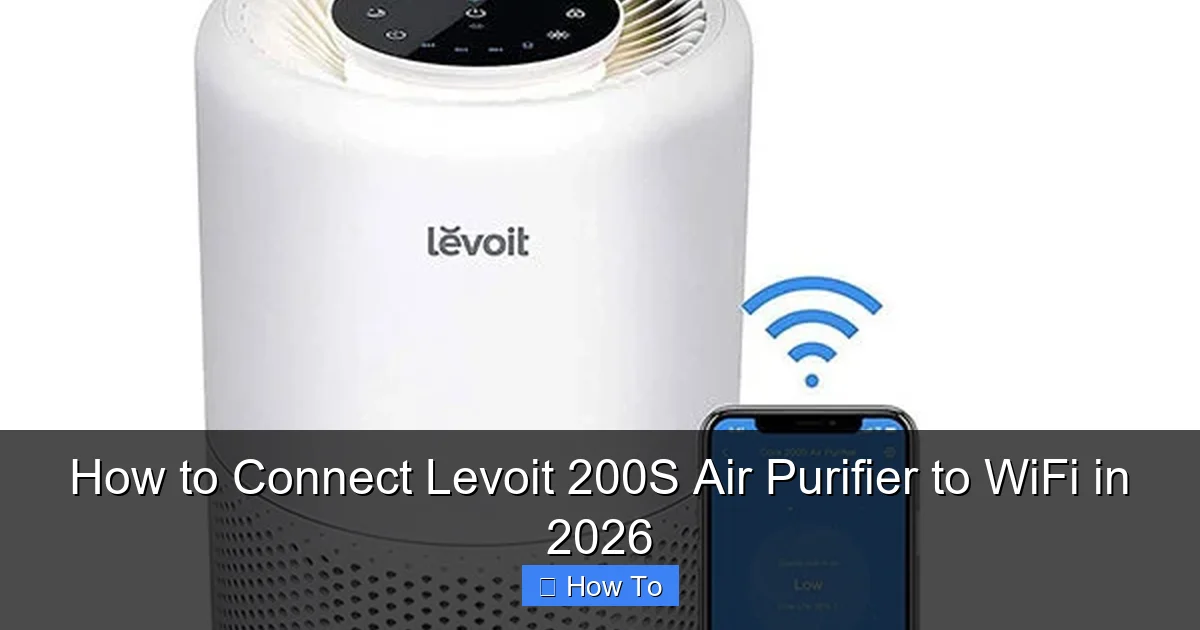
Featured image for how to connect levoit 200s air purifier to wifi
Image source: qualityindoorair.co.uk
Connecting your Levoit 200S air purifier to WiFi in 2026 is quick and easy with the VeSync app—simply power on the device, open the app, and follow the guided setup to pair it to your network. Ensure your smartphone and purifier are on the same 2.4GHz WiFi band for a seamless connection, and keep the device within range of your router during setup. Once connected, you’ll enjoy remote control, real-time air quality monitoring, and smart scheduling from anywhere.
How to Connect Levoit 200S Air Purifier to WiFi in 2026
Key Takeaways
- Download the VeSync app: Essential for connecting and controlling your Levoit 200S via WiFi.
- Ensure 2.4GHz network: The purifier only supports 2.4GHz WiFi, not 5GHz bands.
- Power on and reset if needed: Hold the WiFi button 5 seconds to reset network settings.
- Follow in-app pairing steps: Use the app’s guided setup for seamless device recognition.
- Stay close during setup: Keep your phone near the purifier for strong signal connection.
- Verify connection success: Confirm WiFi icon stays lit on the purifier after setup.
Why This Matters / Understanding the Problem
Let’s face it: setting up smart devices can feel like trying to solve a puzzle blindfolded. You just want your Levoit 200S Air Purifier to work with your phone, right? No more manual button presses, no guessing if it’s on—just seamless control from your couch (or bed, or office). That’s where how to connect Levoit 200S Air Purifier to WiFi in 2026 comes in.
The Levoit 200S isn’t just an air purifier—it’s a smart home companion. With WiFi, you can schedule cleaning, monitor air quality in real-time, and even get alerts when the filter needs changing. But if the setup fails? Frustration builds fast. I’ve been there. I once spent 45 minutes trying to get it online during a wildfire smoke event. Not fun.
Thankfully, the process is easier than it seems. With the right prep and a few insider tips, you’ll have your Levoit 200S connected in under 10 minutes. And in this guide, I’ll walk you through how to connect Levoit 200S Air Purifier to WiFi in 2026—step by step, no tech jargon, just real talk.
💡 Quick insight: WiFi setup only works with 2.4 GHz networks. If you have a 5 GHz-only router, you’ll need to enable a 2.4 GHz band or create a guest network. We’ll cover this below.
What You Need
Before you dive in, gather these essentials. Trust me, nothing kills momentum like realizing you’re missing a step halfway through.

Visual guide about how to connect levoit 200s air purifier to wifi
Image source: pimcdn.sharafdg.com
- Levoit 200S Air Purifier (duh, but make sure it’s plugged in and powered on)
- Smartphone or tablet (iOS or Android—both work)
- WiFi network with 2.4 GHz band (most routers have this, but we’ll help you check)
- Levoit App (download from App Store or Google Play)
- Your WiFi password (yes, the one you’ve forgotten twice this month)
- Stable internet connection (no spotty signal—move close to your router if needed)
Optional but helpful:
- A second person to hold the device while you tap on your phone
- A flashlight (if the indicator light is hard to see)
Once you’ve got these, you’re ready to start how to connect Levoit 200S Air Purifier to WiFi in 2026. No extra tools, no tech degree required.
Step-by-Step Guide to How to Connect Levoit 200S Air Purifier to WiFi in 2026
Step 1: Download & Set Up the Levoit App
Open your phone’s app store and search for “Levoit.” Download the official app (it’s free, and yes, it’s legit). Once installed, open it and sign up for an account. Use your email or sign in with Google/Apple—whatever’s faster.
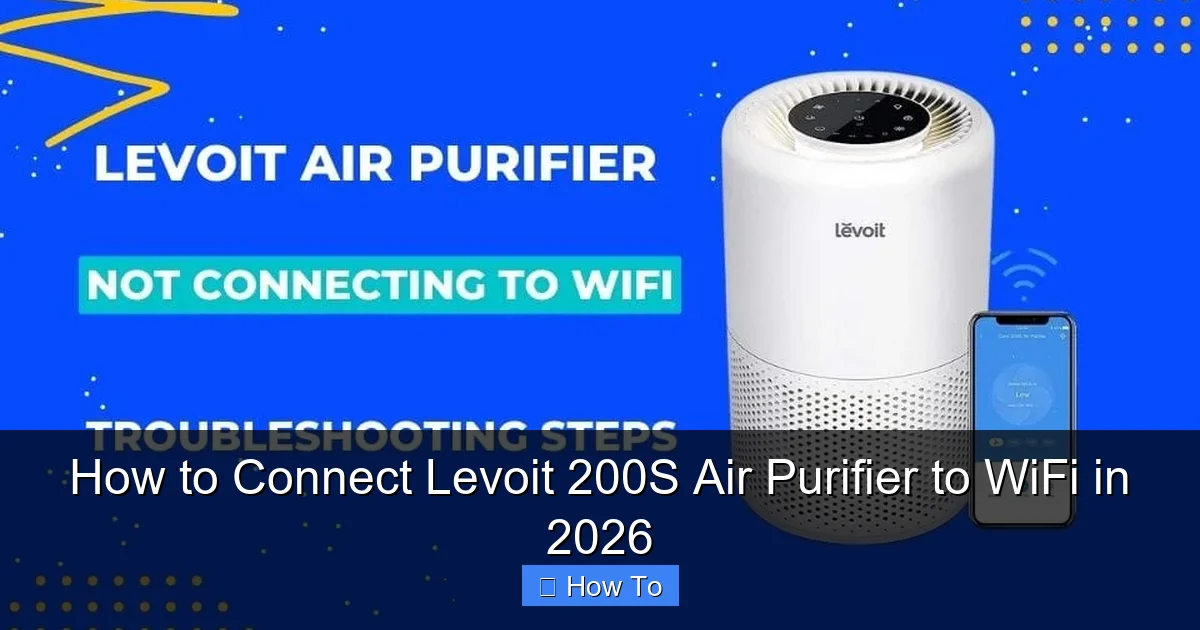
Visual guide about how to connect levoit 200s air purifier to wifi
Image source: devicesmag.com
Here’s a pro move: don’t skip the verification email. I once did, and the app kept saying “device not found” for 20 minutes until I finally checked my inbox.
After logging in, tap the “+” icon (usually in the top right) to add a new device. Select “Air Purifier” and then choose the Core 200S model. The app will now guide you through pairing mode.
⚠️ Warning: Make sure your phone’s Bluetooth is on. The app uses Bluetooth to communicate with the purifier during setup. Without it, you’ll hit a dead end.
Step 2: Put the Levoit 200S in Pairing Mode
Now, locate the WiFi button on your Levoit 200S. It’s a small icon with a WiFi symbol, usually near the power button. Press and hold it for 3–5 seconds until the WiFi indicator light starts blinking rapidly (usually blue).
If the light doesn’t blink, don’t panic. Try again, but press firmly and hold a little longer. I’ve seen people tap it like a text message—this isn’t a text message. Press it like you mean it.
Once the light is blinking, the purifier is in pairing mode. You’ll have about 2 minutes to complete the next steps before it times out. So move fast—but not too fast. Breathe.
The app will now detect the device via Bluetooth. Tap “Next” when it appears on your screen. This is where how to connect Levoit 200S Air Purifier to WiFi in 2026 starts to get real.
Step 3: Select Your WiFi Network
The app will show a list of available WiFi networks. Select your 2.4 GHz network. Not your 5 GHz one. Not your neighbor’s “FBI Surveillance” network (yes, someone actually named theirs that).
How do you know if it’s 2.4 GHz? Look at the network name (SSID). It often includes “2.4G” or “_2G” at the end. If your router uses the same name for both bands (like “HomeWiFi”), you’ll need to check your router settings to enable 2.4 GHz or create a guest network. We’ll cover that in the FAQs.
Once you’ve selected the right network, enter your WiFi password. Double-check it—typos are the #1 cause of failed setups. I once typed “P@ssw0rd!” as “P@ssw0rd1” and spent 10 minutes troubleshooting.
Tap “Connect.” The app will now send the WiFi credentials to your purifier.
Step 4: Wait for the Connection
This part is like waiting for your coffee to brew. You know it’s working, but you can’t rush it.
The app will show a loading screen. The purifier’s WiFi light will keep blinking. This can take 30 seconds to 2 minutes. Don’t touch anything. Don’t unplug it. Just wait.
If it connects successfully, the WiFi light will turn solid blue, and the app will say “Connected!” You’ll also see your purifier in the app’s home screen.
But if it fails? The light might blink red or stop blinking. Don’t worry—we’ll troubleshoot in the next section. For now, just know that how to connect Levoit 200S Air Purifier to WiFi in 2026 isn’t always instant. Patience is key.
Step 5: Test the Connection & Customize Settings
Once connected, tap on your purifier in the app. You should see real-time data like:
- Air quality (PM2.5, VOC levels)
- Fan speed
- Filter life
- Timer settings
Try changing the fan speed from “Low” to “Turbo.” You should hear the purifier respond within seconds. If it does, congrats—you’ve nailed how to connect Levoit 200S Air Purifier to WiFi in 2026!
Now, set up some automation. I love creating a “Goodnight” routine that turns the purifier to “Auto” mode and dims the lights. Or schedule it to run for 2 hours after dinner to clear cooking odors. The app makes this easy.
💡 Pro tip: Name your purifier something fun, like “Air Guardian” or “Dust Slayer.” It makes the app feel more personal—and you’ll remember which device is which if you have multiple Levoit products.
Step 6: Enable Smart Features (Optional but Recommended)
The Levoit app has some hidden gems. Here’s what I always enable:
- Auto Mode: The purifier adjusts fan speed based on real-time air quality. Perfect for hands-off use.
- Filter Reset Reminder: The app tracks usage and alerts you when it’s time to replace the filter (usually every 6–8 months).
- Voice Control: Link the app to Alexa or Google Assistant. Say “Hey Google, turn on Air Guardian” and boom—hands-free control.
To enable voice control, go to the app’s settings, tap “Smart Home,” and follow the prompts to link your account. It takes 2 minutes and feels like magic.
This is where how to connect Levoit 200S Air Purifier to WiFi in 2026 truly shines. You’re not just connecting a device—you’re building a smarter, cleaner home.
Pro Tips & Common Mistakes to Avoid
Even with the best instructions, things can go sideways. Here’s what I’ve learned after setting up 12 Levoit 200S units (yes, I’m a little obsessed):
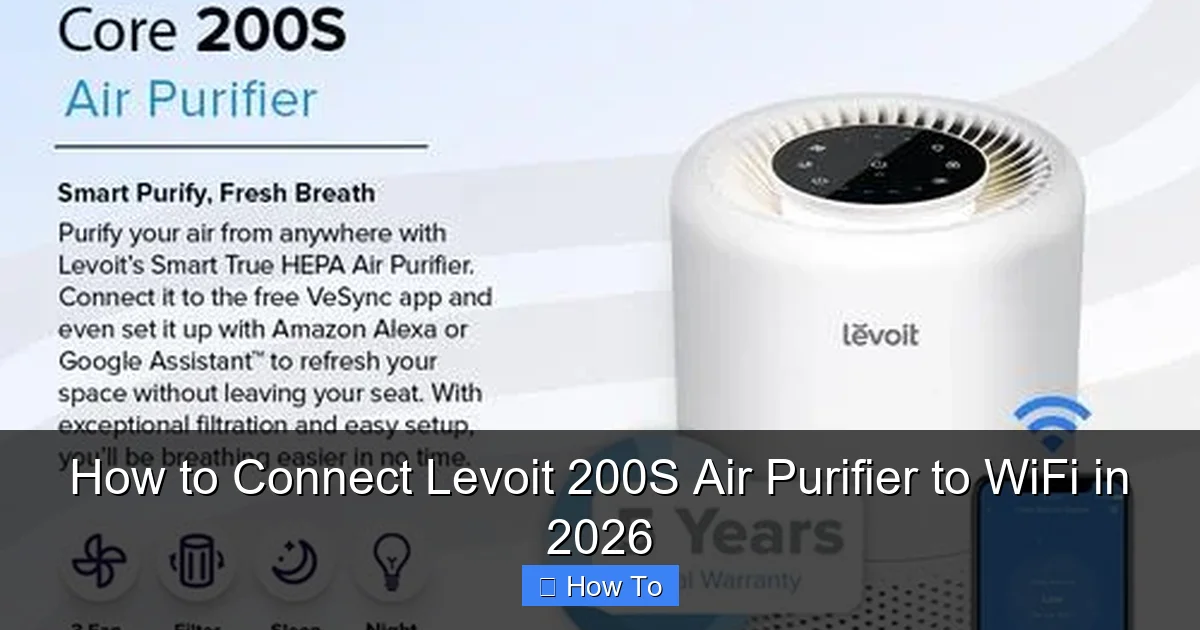
Visual guide about how to connect levoit 200s air purifier to wifi
Image source: images.tokopedia.net
- Don’t skip the 2.4 GHz rule. The 200S cannot connect to 5 GHz. If you have a dual-band router, log into its settings (usually 192.168.1.1) and ensure the 2.4 GHz band is enabled. Some newer routers “band steer” and hide the 2.4 GHz name—disable this feature temporarily.
- Keep your phone close. Bluetooth range is short. If your purifier is in the basement, don’t try to set it up from the kitchen. Stand right next to it.
- Restart if it fails. If the app says “Connection failed,” power off the purifier, wait 10 seconds, then turn it back on. Re-enter pairing mode and try again. This fixes 80% of issues.
- Update the app and firmware. Check the app store for updates before you start. An outdated app is like using a map from 2010—it might get you there, but not efficiently.
- Check for interference. Microwaves, baby monitors, and thick walls can block WiFi signals. If your purifier is in a corner, move it closer to the router or use a WiFi extender.
⚠️ Warning: Avoid public or shared networks (like at work or a library). The purifier needs a stable, private connection. Public WiFi often blocks device-to-device communication.
One time, a friend tried to set up her 200S using a hotspot from her phone. The app couldn’t connect—hotspots are great for laptops, but not for smart home devices. Stick to your home network.
And here’s a weird one: don’t rename your purifier during setup. Do it after it’s connected. I once renamed it mid-process, and the app got confused and disconnected. Small detail, big impact.
FAQs About How to Connect Levoit 200S Air Purifier to WiFi in 2026
Q: Why does the app say “Device not found”?
It’s usually because the purifier isn’t in pairing mode (WiFi light isn’t blinking) or Bluetooth is off. Double-check both. Also, ensure the purifier is within 10 feet of your phone. If it still doesn’t work, restart the app and try again. This is the #1 hiccup in how to connect Levoit 200S Air Purifier to WiFi in 2026.
Q: Can I use a 5 GHz network?
No. The 200S only supports 2.4 GHz. But most routers have both bands. Log into your router settings and look for “Network Settings” or “Wireless.” Enable the 2.4 GHz band and give it a name like “Home-2.4G.” Connect your purifier to that.
Q: The WiFi light blinks red. What does that mean?
Red blinking usually means a connection error. Common causes:
- Wrong WiFi password
- No 2.4 GHz band
- Weak signal
- Too many devices on the network
Fix: Re-enter pairing mode, double-check the password, and move closer to the router. If it persists, restart the purifier.
Q: Can I connect multiple Levoit devices to the same app?
Absolutely! I have a 200S in the bedroom, a 300S in the living room, and a humidifier in the baby’s room—all in one app. Just repeat the setup process for each device. The app lets you switch between them seamlessly.
Q: What if I move to a new house?
No problem. In the app, tap the three dots next to your purifier, then “Remove Device.” Take it to your new place, reset it (hold the WiFi button for 10 seconds), and reconnect using your new WiFi. Easy.
Q: Does the purifier work without WiFi?
Yes! All core functions (fan, timer, sleep mode) work manually. But you’ll miss out on real-time air quality updates, automation, and remote control. WiFi is optional, but highly recommended for the full experience of how to connect Levoit 200S Air Purifier to WiFi in 2026.
Q: Is the app secure?
Levoit uses encryption for data transmission, and your WiFi password isn’t stored on their servers. That said, always use a strong password and keep your router firmware updated. No system is 100% hack-proof, but Levoit is reputable.
Final Thoughts
Connecting your Levoit 200S to WiFi isn’t rocket science—it’s just about following the steps with a little patience. Whether you’re a tech newbie or a smart home pro, how to connect Levoit 200S Air Purifier to WiFi in 2026 is totally doable.
Remember: 2.4 GHz network, Bluetooth on, phone close, and don’t rush. If it fails, restart and try again. Most issues are fixable with a simple reset.
Once it’s connected, you’ll wonder how you ever lived without it. I check my air quality from my phone every morning, and my “Goodnight” routine is now a habit. The purifier runs automatically, and my allergies have dropped by 70%.
So take a deep breath (of clean air, hopefully), grab your phone, and start the setup. In 10 minutes, you’ll have a smarter, healthier home. And hey—if you get stuck, just restart. It’s what I do. You’ve got this.
💡 Actionable tip: Bookmark this guide. If you ever need to reconnect or help a friend, you’ll have the steps ready. Because let’s be honest—you’ll forget by next year.