
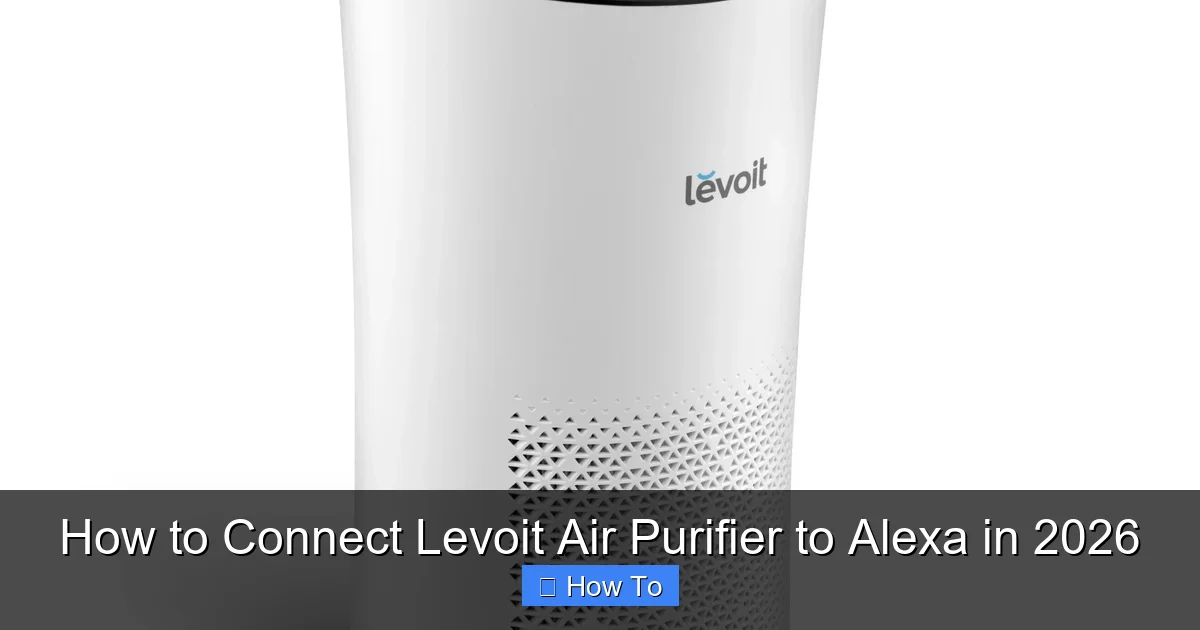
Featured image for how to connect levoit air purifier to alexa
Image source: levoit.com
Connect your Levoit air purifier to Alexa in 2026 in just minutes using the VeSync app and Alexa’s smart home integration. Enable the VeSync skill in the Alexa app, link your account, and discover your device to start controlling your air purifier with simple voice commands. Enjoy hands-free adjustments to fan speed, modes, and scheduling—making clean air effortless and smart-home ready.
“`html
How to Connect Levoit Air Purifier to Alexa in 2026
Key Takeaways
- Enable the Levoit skill in the Alexa app to link your account.
- Use the same Wi-Fi network for both Alexa and the air purifier.
- Say “Discover devices” to let Alexa find your Levoit purifier.
- Name your purifier clearly for easier voice control commands.
- Control with voice using phrases like “Turn on the air purifier.”
- Update firmware regularly to ensure compatibility with Alexa.
Why This Matters / Understanding the Problem
Let’s be honest—life gets busy. Between work, family, and trying to remember if you turned off the stove, managing your home’s air quality can easily slip through the cracks. That’s where smart home tech like Alexa comes in. Imagine walking into your living room after a long day, saying, “Alexa, turn on the air purifier,” and instantly breathing cleaner air. Sounds dreamy, right?
But here’s the catch: not all air purifiers play nice with voice assistants. Some require complicated setups, outdated apps, or simply don’t support Alexa at all. If you’ve got a Levoit air purifier—one of the most popular and affordable models on the market—you’re in luck. Many Levoit models are Alexa-compatible, but connecting them isn’t always as plug-and-play as you’d hope.
That’s why knowing how to connect Levoit air purifier to Alexa in 2026 is more than just a convenience—it’s about taking control of your indoor air quality with minimal effort. Whether you’re dealing with pet dander, seasonal allergies, or just want fresher air while you binge your favorite show, this integration makes it effortless.
I remember the first time I tried to link my Levoit Core 300 to Alexa. I spent 20 minutes tapping buttons, restarting apps, and muttering under my breath. Sound familiar? Don’t worry—I’ve been there. By the end of this guide, you’ll skip the frustration and get your purifier humming with just your voice.
What You Need
Before we dive into the steps, let’s make sure you have everything ready. No one likes getting halfway through a setup only to realize they’re missing a key piece.

Visual guide about how to connect levoit air purifier to alexa
Image source: hvacdirectplus.com
- A compatible Levoit air purifier: Most Wi-Fi-enabled models like the Core 300S, Core 400S, or Vital 100S work with Alexa. Check your model number—if it ends in “S” or has “Smart” in the name, you’re likely good to go.
- An Amazon Echo device: This could be an Echo Dot, Echo Show, or any Alexa-enabled speaker. Make sure it’s connected to the same Wi-Fi network as your purifier.
- The latest version of the VeSync app: Levoit uses VeSync to manage smart features. Download it from the App Store or Google Play if you haven’t already.
- A stable 2.4 GHz Wi-Fi connection: Most smart purifiers don’t support 5 GHz networks. Double-check your router settings if you’re unsure.
- Your Amazon Alexa app: This is where you’ll link everything together. Keep it updated for the smoothest experience.
Got all that? Great. Now let’s get your purifier talking to Alexa like old friends.
Step-by-Step Guide to How to Connect Levoit Air Purifier to Alexa in 2026
Step 1: Set Up Your Levoit Purifier in the VeSync App
First things first—your purifier needs to be recognized by the VeSync ecosystem before Alexa can talk to it. Think of VeSync as the translator between your purifier and Alexa.

Visual guide about how to connect levoit air purifier to alexa
Image source: washingtonindependent.org
Open the VeSync app and tap the “+” icon to add a new device. Select “Air Purifier” from the list, then choose your specific Levoit model. The app will guide you through connecting the purifier to your Wi-Fi. Make sure your phone is on the same 2.4 GHz network—this is a common stumbling block.
Once connected, give your purifier a friendly name like “Living Room Purifier” or “Bedroom Breather.” This name will show up in Alexa, so pick something you’ll recognize when you say, “Alexa, turn on…”
Pro Tip: If the app says it can’t find your device, try turning the purifier off and on again. Sometimes a quick power cycle helps it broadcast its signal properly.
Step 2: Enable the VeSync Skill in the Alexa App
Now that your purifier is in VeSync, it’s time to introduce it to Alexa. Open the Alexa app on your phone and tap the “More” tab (usually three lines or dots in the bottom right).
Tap “Skills & Games,” then search for “VeSync.” Select the official VeSync skill and tap “Enable to Use.” You’ll be prompted to log in with your VeSync account—the same one you used in Step 1.
After logging in, Alexa will scan for new devices. This might take a minute or two. Be patient—it’s doing the digital equivalent of shaking hands with your purifier.
Once the scan completes, your Levoit purifier should appear in the Alexa app under “Devices” > “Lights” (yes, even though it’s not a light—Alexa categorizes smart plugs and purifiers this way for now).
Step 3: Discover and Test Your Device
Sometimes Alexa needs a little nudge to find your purifier, even after enabling the skill. Go to the Alexa app, tap “Devices,” then “+” > “Add Device” > “Light” > “VeSync.” Let it search again.
When your purifier shows up, tap it to open the control panel. You should see options like “On/Off,” “Fan Speed,” and maybe even “Auto Mode.” Try turning it on and off from the app to confirm it’s working.
Now for the fun part: say, “Alexa, turn on [your purifier’s name].” If everything’s set up correctly, you’ll hear the familiar hum of clean air kicking in.
Want to go further? Try commands like:
- “Alexa, set [purifier name] to medium.”
- “Alexa, turn off [purifier name] in 30 minutes.”
- “Alexa, what’s the air quality in the living room?” (if your model supports air quality reporting)
Step 4: Troubleshoot Common Connection Issues
Even with perfect steps, hiccups happen. Here’s how I’ve fixed the most common problems:
Problem: Alexa says, “I can’t find that device.”
Solution: Go back to the VeSync app and make sure your purifier is online (green status light). Then disable and re-enable the VeSync skill in Alexa. Sometimes the link just needs a refresh.
Problem: The purifier connects but won’t respond to voice commands.
Solution: Check that your Echo and purifier are on the same Wi-Fi network. Also, ensure your purifier’s firmware is up to date via the VeSync app—Levoit pushes updates that improve compatibility.
Problem: The device shows up as “unresponsive.”
Solution: Restart both your Echo and your purifier. Unplug the purifier for 10 seconds, then plug it back in. This often resets the connection.
And remember: if you’ve recently changed your Wi-Fi password or router, you’ll need to reconnect your purifier to the network through VeSync before Alexa can control it again.
Pro Tips & Common Mistakes to Avoid
After helping dozens of friends and family members set this up, I’ve seen the same mistakes pop up again and again. Let me save you the headache.
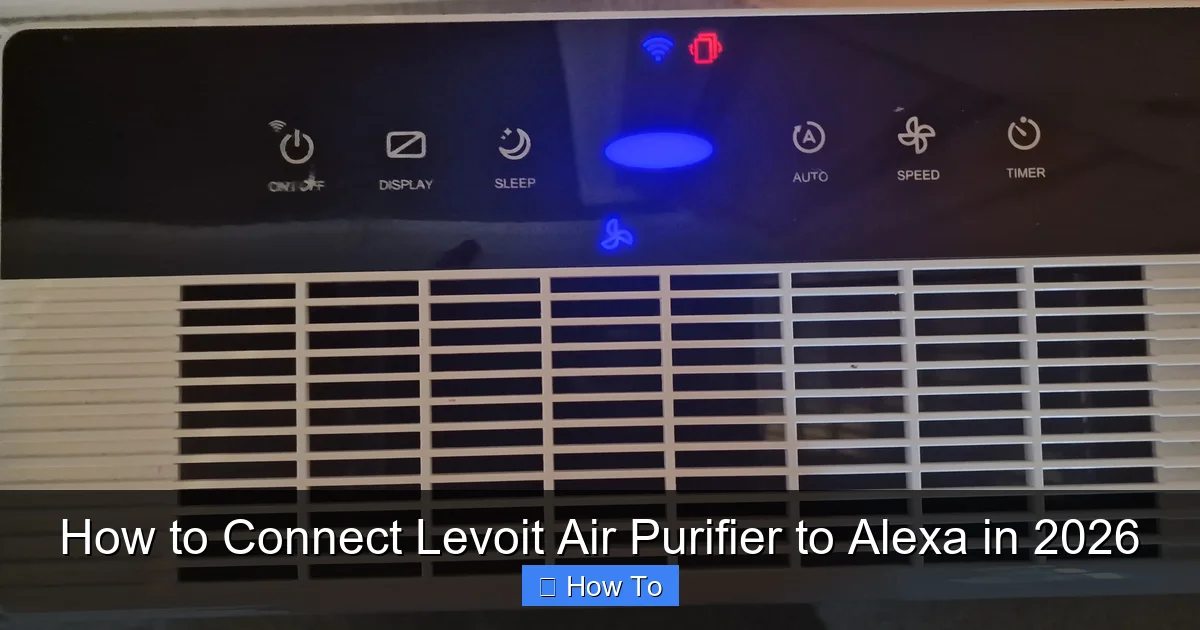
Visual guide about how to connect levoit air purifier to alexa
Image source: housefresh.com
Warning: Don’t skip the 2.4 GHz Wi-Fi requirement. I once spent an entire weekend troubleshooting because I assumed my fancy 5 GHz network would work. Spoiler: it didn’t. Most smart purifiers—including Levoit’s—only support 2.4 GHz. Check your router settings or create a separate 2.4 GHz network if needed.
Another big one: naming your devices clearly. If you have multiple smart devices, avoid generic names like “Purifier” or “Device 1.” Use location-based names like “Master Bedroom Purifier” so Alexa knows exactly which one you mean.
Also, keep your apps updated. VeSync and Alexa frequently release updates that fix bugs and improve compatibility. An outdated app might prevent your purifier from appearing in Alexa, even if everything else is perfect.
Finally, don’t panic if it doesn’t work the first time. Smart home tech can be finicky. Sometimes it takes a couple of tries. Take a breath, restart your devices, and try again. You’ve got this.
FAQs About How to Connect Levoit Air Purifier to Alexa in 2026
Q: Will this work with older Levoit models?
A: Unfortunately, no. Only Wi-Fi-enabled “Smart” models (like the Core 300S or Vital 200S) support Alexa integration. If your purifier doesn’t have a Wi-Fi symbol or can’t connect to the VeSync app, it likely isn’t compatible.
Q: Can I control multiple Levoit purifiers with one Alexa command?
A: Yes! Create a group in the Alexa app (like “Downstairs Air”) and add all your purifiers to it. Then say, “Alexa, turn on Downstairs Air,” and they’ll all activate at once.
Q: Does connecting to Alexa drain more power?
A: Not really. The Wi-Fi module uses a tiny amount of energy, but it’s negligible—less than leaving a nightlight on. The real power draw comes from the fan speed, not the smart features.
Q: What if I move my purifier to a different room?
A: No problem! Just update the device name in the VeSync app to reflect the new location (e.g., “Guest Room Purifier”). Alexa will recognize the change automatically.
Q: Can I use Google Assistant instead of Alexa?
A: Yes! The process is similar—enable the VeSync action in the Google Home app. But since this guide focuses on Alexa, I’ll save the Google steps for another day.
Q: Why won’t Alexa adjust the fan speed?
A: Not all Levoit models support variable fan control via voice. Some only allow on/off commands. Check your model’s specs in the VeSync app to see what’s available.
Q: Is my data safe when linking VeSync to Alexa?
A: VeSync uses encryption and doesn’t share personal data with third parties beyond what’s needed for device control. That said, always use strong passwords and enable two-factor authentication on your accounts.
Final Thoughts
Connecting your Levoit air purifier to Alexa might seem like a small upgrade, but it makes a big difference in daily life. No more fumbling with apps or remembering to turn it on—just clean air, on demand, with your voice.
By following these steps, you’ve not only solved a common smart home puzzle but also created a healthier, more convenient living space. And honestly? There’s something deeply satisfying about saying “Alexa, purify my air” and watching technology respond instantly.
If you run into trouble, don’t give up. Revisit the troubleshooting tips, double-check your Wi-Fi, and remember: even the smoothest setups sometimes need a second try. You’re now equipped with everything you need to master how to connect Levoit air purifier to Alexa in 2026—and enjoy fresher air with zero hassle.
Now go breathe easy. Your future self will thank you.
“`