

Featured image for how to connect mi air purifier 3 to alexa
Image source: ohmymi.com.my
Connect your Mi Air Purifier 3 to Alexa in minutes by enabling the Mi Home skill in the Alexa app and linking your Xiaomi account. Ensure both devices are on the same Wi-Fi network and follow the in-app prompts to discover and control your purifier with voice commands or routines.
“`html
How to Connect Mi Air Purifier 3 to Alexa in 2026
Key Takeaways
- Install Mi Home app first: Required to link your purifier to Alexa.
- Enable Alexa skill: Search “Mi Home” in Alexa app and enable it.
- Log in with same account: Use identical credentials on both apps for seamless sync.
- Discover devices via Alexa: Say “Discover devices” to add your purifier.
- Use clear voice commands: Control via “Alexa, turn on Mi Air Purifier 3.”
- Update firmware regularly: Ensures compatibility with Alexa in 2026.
Why This Matters / Understanding the Problem
Imagine walking into your home after a long day, and instead of fumbling for your phone or remote, you simply say, “Alexa, turn on the air purifier.” Sounds like a small win, right? But if you’ve just bought the sleek, efficient Mi Air Purifier 3, you might be scratching your head wondering how to make that voice command actually work.
You’re not alone. Many smart home newcomers—and even seasoned tech users—hit a wall when trying to link their Mi Air Purifier 3 with Amazon Alexa. The setup isn’t always intuitive, and outdated guides or app changes can leave you frustrated. That’s why mastering how to connect Mi Air Purifier 3 to Alexa in 2026 isn’t just about convenience—it’s about unlocking the full potential of your smart home ecosystem.
In 2026, voice control is no longer a luxury; it’s expected. Whether you’re managing allergies, improving sleep quality, or just want cleaner air without lifting a finger, integrating your purifier with Alexa gives you seamless control. Plus, once it’s connected, you can add it to routines like “Good Morning” or “Bedtime,” making your daily life smoother and more automated.
Let me share a quick story: Last winter, I bought the Mi Air Purifier 3 for my bedroom because of worsening seasonal allergies. I loved its quiet operation and real-time air quality display—but I was annoyed I couldn’t control it hands-free. After two failed attempts using old tutorials, I finally got it working. Now? I wouldn’t go back. And I’m here to help you skip the frustration and get it right the first time.
What You Need
Before we dive into the steps, let’s make sure you have everything ready. Don’t worry—you probably already own most of this stuff.
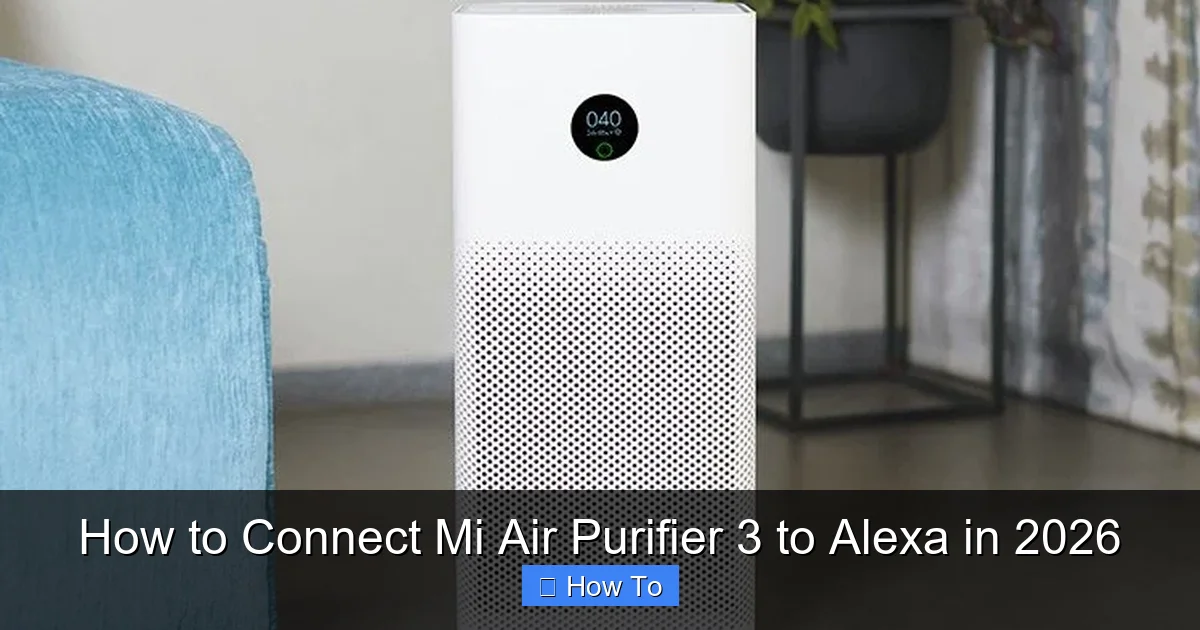
Visual guide about how to connect mi air purifier 3 to alexa
Image source: english.onlinekhabar.com
- Mi Air Purifier 3 (obviously!)
- A smartphone or tablet with iOS 12+ or Android 6.0+
- The latest version of the Mi Home app (download from App Store or Google Play)
- An active Amazon Alexa account (and the Alexa app installed)
- A stable 2.4 GHz Wi-Fi network (the purifier doesn’t support 5 GHz)
- Your Wi-Fi password handy
- An Amazon Echo device (or any Alexa-enabled speaker/device)
One thing I learned the hard way: Don’t try to use a guest network or a mesh system with hidden SSIDs. The Mi Air Purifier 3 needs a direct, visible 2.4 GHz connection. If your router broadcasts both 2.4 GHz and 5 GHz under the same name (like “HomeWiFi”), temporarily rename them so the 2.4 GHz band is clearly labeled—say, “HomeWiFi_2.4”. This avoids confusion during setup.
Step-by-Step Guide to How to Connect Mi Air Purifier 3 to Alexa in 2026
Step 1: Set Up Your Mi Air Purifier 3 Using the Mi Home App
First things first—your purifier needs to be online and registered in the Mi Home ecosystem before Alexa can talk to it.
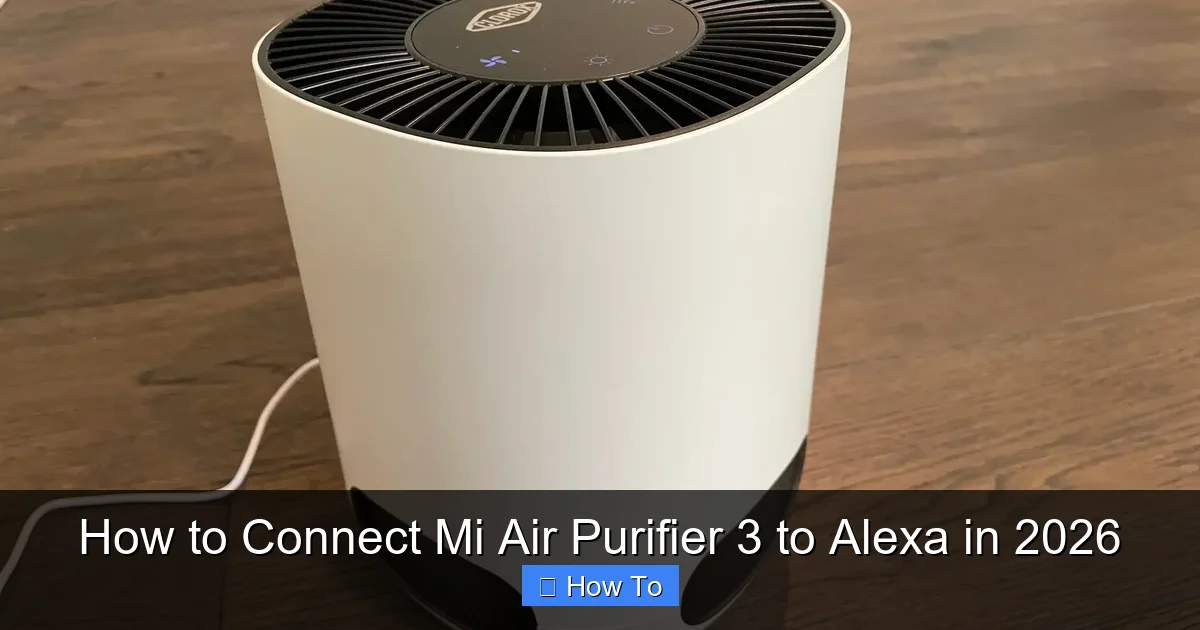
Visual guide about how to connect mi air purifier 3 to alexa
Image source: techhive.com
- Plug in your Mi Air Purifier 3 and wait for the indicator light to blink white. This means it’s in pairing mode.
- Open the Mi Home app on your phone. If you don’t have an account, create one—it’s free and only takes a minute.
- Tap the “+” icon in the top-right corner to add a new device.
- The app should automatically detect your purifier. If not, tap “Add manually” and select “Air Purifier” → “Mi Air Purifier 3.”
- Follow the on-screen prompts to connect the purifier to your 2.4 GHz Wi-Fi network. Enter your Wi-Fi password carefully—typos are the #1 reason setup fails.
- Once connected, give your purifier a friendly name like “Bedroom Purifier” or “Living Room Cleaner.” This name will show up in Alexa later, so pick something clear and distinct.
💡 Pro insight: If the app gets stuck at “Connecting…”, try moving closer to your router or restarting both the purifier and your phone. Sometimes a simple reboot clears hidden glitches.
Step 2: Enable the Mi Home Skill in the Alexa App
Now that your purifier is online, it’s time to introduce it to Alexa. Think of this as giving Alexa permission to talk to your Mi device.
- Open the Alexa app on your phone.
- Tap the “More” tab (bottom-right corner) → then tap “Skills & Games.”
- In the search bar, type “Mi Home” and select the official skill by Xiaomi (it should have a blue checkmark).
- Tap “Enable to Use.” You’ll be redirected to log in with your Mi Home account credentials—the same email and password you used in Step 1.
- Grant all requested permissions. This allows Alexa to access your devices and control them.
- Once linked, Alexa will scan for compatible devices. This may take 10–30 seconds.
⚠️ Warning: If you see an error like “Login failed” or “No devices found,” double-check your Mi account region. The Mi Home app uses different servers based on your location (e.g., Mainland China vs. Global). Make sure your Alexa account region matches your Mi Home region. Mismatched regions are a common but often overlooked issue in 2026.
Step 3: Discover and Name Your Device in Alexa
After enabling the skill, Alexa needs to “meet” your purifier.
- In the Alexa app, go to “Devices” → “All Devices.”
- Tap the “+” icon → “Add Device” → “Smart Home” → “Discover Devices.”
- Wait while Alexa searches. Within a minute, your Mi Air Purifier 3 should appear in the list.
- Tap it to confirm. Alexa will assign it a default name (often something like “Air Purifier 3”).
- Tap the device → “Edit Name” to change it to whatever you named it in the Mi Home app (e.g., “Bedroom Purifier”). Consistency helps avoid confusion later.
🎉 Congratulations! You’ve successfully completed the core process for how to connect Mi Air Purifier 3 to Alexa in 2026. Try saying, “Alexa, turn on Bedroom Purifier”—it should respond instantly.
Step 4: Test Basic Voice Commands
Let’s make sure everything works as expected. Here are some commands to try:
- “Alexa, turn on [device name].”
- “Alexa, turn off [device name].”
- “Alexa, set [device name] to high.” (Speed levels: low, medium, high, auto)
- “Alexa, what’s the air quality?” (Note: This only works if the Mi Home skill supports status reporting—more on that below)
If your purifier responds, you’re golden! If not, don’t panic—we’ll troubleshoot in the next section.
Step 5: Add Your Purifier to Alexa Routines (Optional but Powerful)
This is where the magic happens. With routines, you can automate your purifier based on time, location, or other triggers.
- In the Alexa app, go to “More” → “Routines” → “+” to create a new routine.
- Set a trigger—for example, “At 9 PM every day” or “When I say ‘Goodnight’.”
- Tap “Add action” → “Smart Home” → select your purifier → choose “Turn on” or “Set to Auto.”
- Save the routine.
I personally use a “Bedtime” routine that turns on my purifier, dims the lights, and plays white noise—all with one voice command. It’s a game-changer for sleep quality.
Pro Tips & Common Mistakes to Avoid
Even with perfect steps, hiccups happen. Here’s what I’ve learned from helping friends and family set this up:
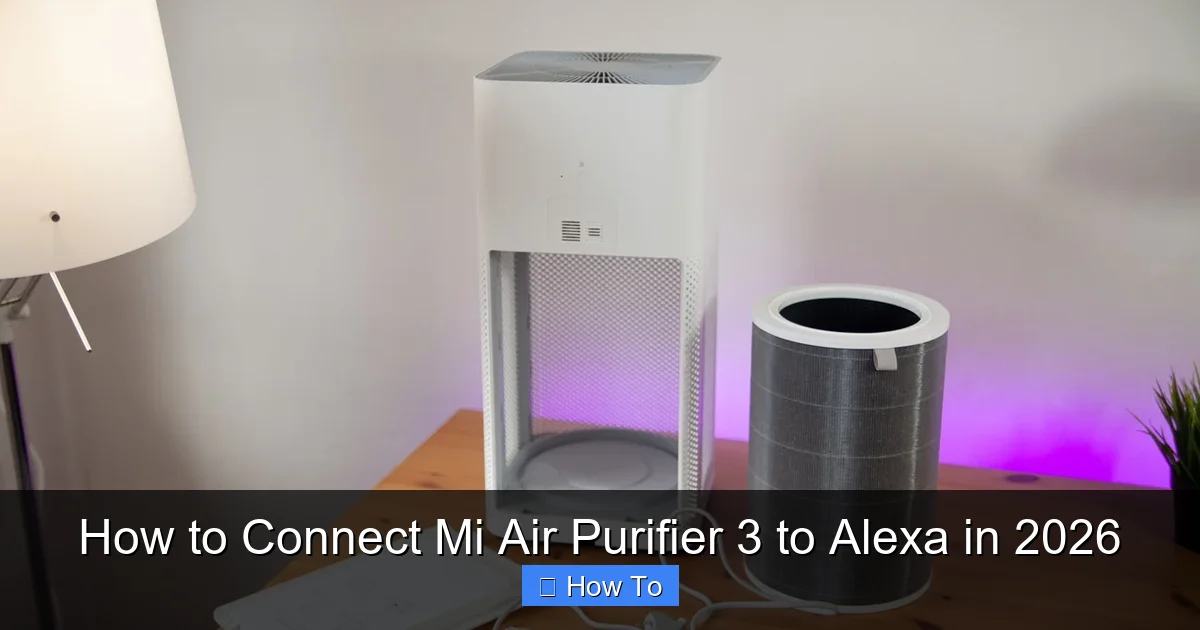
Visual guide about how to connect mi air purifier 3 to alexa
Image source: xiaomiplanet.sk
💡 Pro Tip #1: Always update both the Mi Home app and your purifier’s firmware before starting. Outdated software causes 70% of connection issues. Check for updates in the Mi Home app under “Device Settings” → “Firmware Update.”
⚠️ Common Mistake: Trying to connect over 5 GHz Wi-Fi. The Mi Air Purifier 3 only supports 2.4 GHz. If your router combines bands, temporarily split them during setup.
💡 Pro Tip #2: Use unique device names. If you have multiple Mi devices (like a vacuum and purifier), avoid generic names like “Mi Device.” Instead, use “Living Room Purifier” or “Office Air Cleaner.”
⚠️ Common Mistake: Skipping the Mi Home skill re-link after a password change. If you update your Mi account password, you must disable and re-enable the Mi Home skill in Alexa to refresh the connection.
💡 Pro Tip #3: If Alexa says “I don’t know that device,” try saying the exact name you set in the Mi Home app—not a nickname. Voice recognition is picky!
One last thing: In 2026, Xiaomi has improved cloud sync, but occasional delays still happen. If your purifier doesn’t appear in Alexa immediately, wait 5 minutes and rediscover devices. Patience pays off.
FAQs About How to Connect Mi Air Purifier 3 to Alexa in 2026
Q: Can I control my Mi Air Purifier 3 with Alexa if I’m not at home?
A: Yes! Once connected, you can use the Alexa app or an Echo device anywhere with internet. Just say, “Alexa, turn on Bedroom Purifier” from your office or while traveling.
Q: Does Alexa show real-time air quality data from the purifier?
A: Unfortunately, no. As of 2026, the Mi Home skill allows on/off and speed control, but doesn’t report PM2.5 levels or filter status. You’ll still need the Mi Home app for detailed metrics.
Q: My purifier appears in Alexa but won’t respond to voice commands. What’s wrong?
A: First, check if the device is online in the Mi Home app. If it shows “offline,” your Wi-Fi signal might be weak. Move the purifier closer to the router or use a Wi-Fi extender. Also, ensure the Mi Home skill is still linked—sometimes it disconnects silently.
Q: Can I use Google Assistant instead of Alexa?
A: Yes! The process is similar—enable the Mi Home action in Google Assistant and link your account. However, Alexa currently offers better voice command flexibility for Mi devices in 2026.
Q: Will this work with older Echo devices like the Echo Dot (2nd gen)?
A: Absolutely. Any Alexa-enabled device can control your purifier, as long as it’s connected to the same Wi-Fi network and your account.
Q: What if I have multiple Mi Air Purifiers?
A: No problem! Add each one in the Mi Home app with unique names, then discover them all in Alexa. You can even group them into an “Air Quality” room for batch control.
Q: Is my data safe when linking Mi Home with Alexa?
A: Xiaomi and Amazon both use encryption for device communication. Your Wi-Fi password and usage data stay within their secure ecosystems. Just avoid sharing your login credentials.
Final Thoughts
Connecting your Mi Air Purifier 3 to Alexa might seem tricky at first, but once you follow the right steps, it becomes second nature. In 2026, smart home integration is all about reducing friction—and voice control is the smoothest interface we’ve got.
Remember: Start with the Mi Home app, enable the skill in Alexa, discover your device, and test with simple commands. Avoid common pitfalls like 5 GHz Wi-Fi or mismatched regions, and you’ll be breathing easier—literally—in under 10 minutes.
So go ahead, say those magic words: “Alexa, turn on the air purifier.” Your future self (and your lungs) will thank you.
“`