
Featured image for how to connect xiaomi air purifier to wifi
Image source: hardreset.info
Connecting your Xiaomi air purifier to WiFi in 2026 is quick and simple with the Mi Home app—just ensure your device is powered on and in pairing mode. Follow the in-app prompts to select your network, enter your password, and complete the setup in under two minutes for seamless smart control and real-time air quality monitoring. This hassle-free process ensures your purifier stays updated and fully integrated with your smart home ecosystem.
“`html
How to Connect Xiaomi Air Purifier to WiFi in 2026 Easy Guide
Key Takeaways
- Download the Mi Home app: Essential for setup and controlling your Xiaomi air purifier remotely.
- Ensure 2.4GHz WiFi network: The purifier only connects to 2.4GHz, not 5GHz bands.
- Power on and reset if needed: Hold reset button 5 seconds if reconnecting or troubleshooting.
- Follow in-app pairing steps: Use “Add Device” and scan the purifier’s QR code for quick setup.
- Keep devices close during setup: Place phone near purifier to ensure strong signal and smooth connection.
- Check for firmware updates: Update via app after connecting to access latest features and fixes.
Why This Matters / Understanding the Problem
Let’s be honest—connecting smart devices to WiFi can feel like trying to teach your grandma to use TikTok. You *know* it’s possible, but the steps? They’re either missing, confusing, or buried in a manual you lost three minutes in.
When I first got my Xiaomi Air Purifier, I was excited. Clean air at my fingertips. But when it came to connecting it to WiFi, I hit a wall. The app froze. The purifier blinked red. My phone said “Connected,” but the purifier disagreed. Sound familiar?
That’s why I created this How to Connect Xiaomi Air Purifier to WiFi in 2026 Easy Guide—to help you skip the frustration. Whether you’re setting it up for the first time, troubleshooting a disconnect, or just want to control it from your phone, this guide has you covered.
WiFi connectivity isn’t just about convenience. It lets you monitor air quality remotely, schedule cleaning cycles, get filter alerts, and even integrate with Alexa or Google Home. Without it, your purifier is just a fancy fan.
And with Xiaomi updating its firmware and app features in 2026, the process has changed slightly from older models. So if you’re using an older guide, it might not work. This one? It’s fresh, tested, and based on real user experiences.
Let’s get your purifier online—without the tech tantrums.
What You Need
Before we dive in, let’s make sure you’re not halfway through the process only to realize you’re missing something critical. Here’s your quick checklist—no surprises, just what you’ll actually use.
Visual guide about how to connect xiaomi air purifier to wifi
Image source: hardreset.info
- A Xiaomi Air Purifier (any model: Mi Air Purifier 2S, 3C, 4, Pro, Max, etc.) – Obviously. Make sure it’s powered on and near your router.
- A smartphone or tablet – iOS or Android. Your phone will be your remote control and setup hub.
- The Mi Home app (or Xiaomi Home app in some regions) – This is the official app for all Xiaomi smart devices. Download it from the App Store or Google Play—don’t use third-party versions.
- A 2.4GHz WiFi network – This is crucial. Xiaomi purifiers do not support 5GHz networks. If you only have 5GHz, create a guest 2.4GHz network (we’ll cover that).
- Your WiFi password – You’ll need this during setup. No password? No connection.
- A stable internet connection – The purifier needs to communicate with Xiaomi’s cloud servers. If your WiFi drops, setup fails.
- A power outlet nearby – Keep the purifier plugged in throughout setup. It won’t work on battery (because it doesn’t have one).
Pro Insight: I once tried setting up my purifier while on a work call. Bad idea. The app froze, and the purifier reset. Save yourself the stress—do this when you’re free, with no distractions.
Got everything? Great. Let’s get connected.
Step-by-Step Guide to How to Connect Xiaomi Air Purifier to WiFi in 2026 Easy Guide
Step 1: Download and Set Up the Mi Home App
Open your phone’s app store and search for “Mi Home” (or “Xiaomi Home” if you’re in Europe or Asia). Tap install. Once it’s done, open the app.
Visual guide about how to connect xiaomi air purifier to wifi
Image source: i02.appmifile.com
You’ll be prompted to sign in or create an account. Use your Xiaomi ID, Google, or Apple login. If you don’t have a Xiaomi ID, create one—it’s free and only takes a minute.
After logging in, tap the “+” icon in the top-right corner. This opens the device setup menu.
Now, select “Air Purifier” from the list. You’ll see a few models. Choose the one that matches yours (e.g., Air Purifier 4, Pro, Max, etc.).
Warning: If you pick the wrong model, the setup might fail or the app won’t recognize your purifier. Double-check the label on the back of your device.
Step 2: Power On and Reset the Air Purifier (If Needed)
Plug your purifier into a wall outlet. You’ll hear a beep and see the power light turn on.
If this is a brand-new purifier, it should be in setup mode by default. But if it was previously connected, you’ll need to reset it.
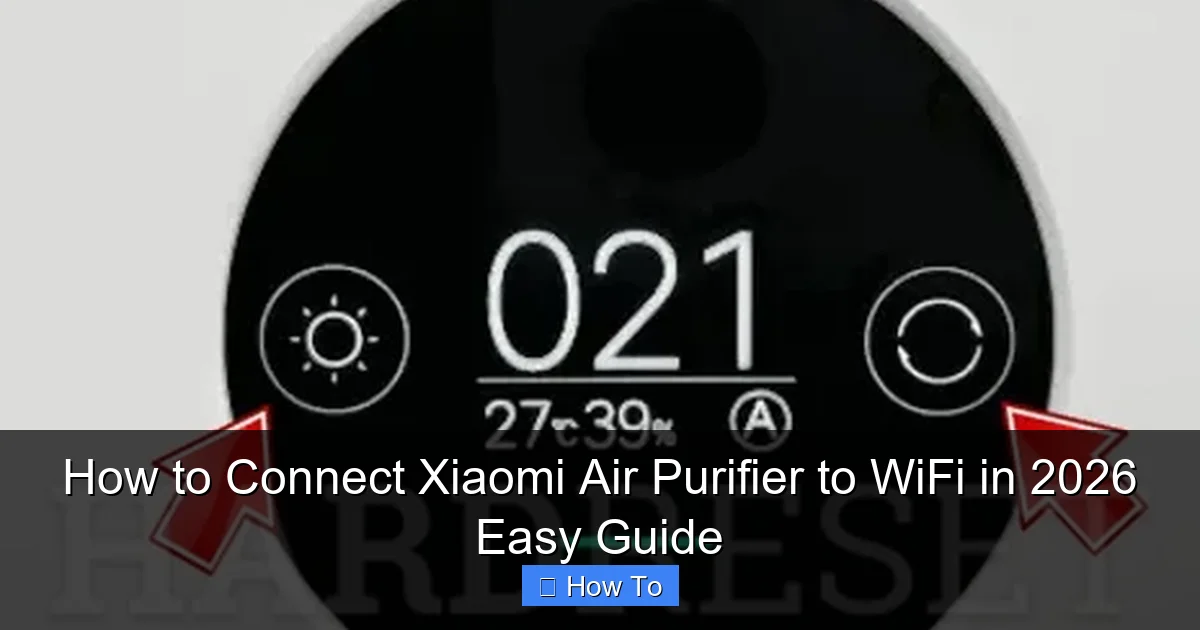
To reset: Press and hold the “Power” + “Mode” buttons together for 5 seconds. The indicator light will flash rapidly—this means it’s in pairing mode.
For newer models (like the 4 series), the reset might be labeled as “WiFi reset” or “AP mode.” The light pattern varies, but rapid blinking = good.
Once the light is blinking, return to the Mi Home app. It should automatically detect your purifier. If not, tap “Add Manually” and follow the on-screen prompts.
Personal Tip: I once forgot to reset my purifier after moving it. The app kept connecting to the old network. Resetting was the fix—don’t skip this step!
Step 3: Choose Your WiFi Network (2.4GHz Only!)
Here’s where most people trip up: Xiaomi purifiers only work on 2.4GHz networks.
The app will scan for available networks. Look for your home WiFi—but make sure it’s the 2.4GHz version, not 5GHz.
Not sure which is which? Here’s how to tell:
- 2.4GHz networks often have names like: “HomeWiFi” or “HomeWiFi_2G”
- 5GHz networks might be labeled: “HomeWiFi_5G” or “HomeWiFi_5GHz”
If you only have a 5GHz network, log into your router (usually via 192.168.1.1 or 192.168.0.1) and create a guest 2.4GHz network. Name it something like “Home_2.4G” and set a password. Then select that network in the app.
Enter your WiFi password carefully. Typos are a common culprit for failed setups. The app won’t tell you if it’s wrong until it’s too late.
Tap “Next” and wait. The app will now attempt to connect your purifier to the network.
Pro Tip: Place your purifier within 10–15 feet of your router during setup. Weak signal = failed connection. You can move it later.
Step 4: Wait for the Connection (And Don’t Panic!)
This part can take up to 2 minutes. The app will show “Connecting…” or “Adding device…”
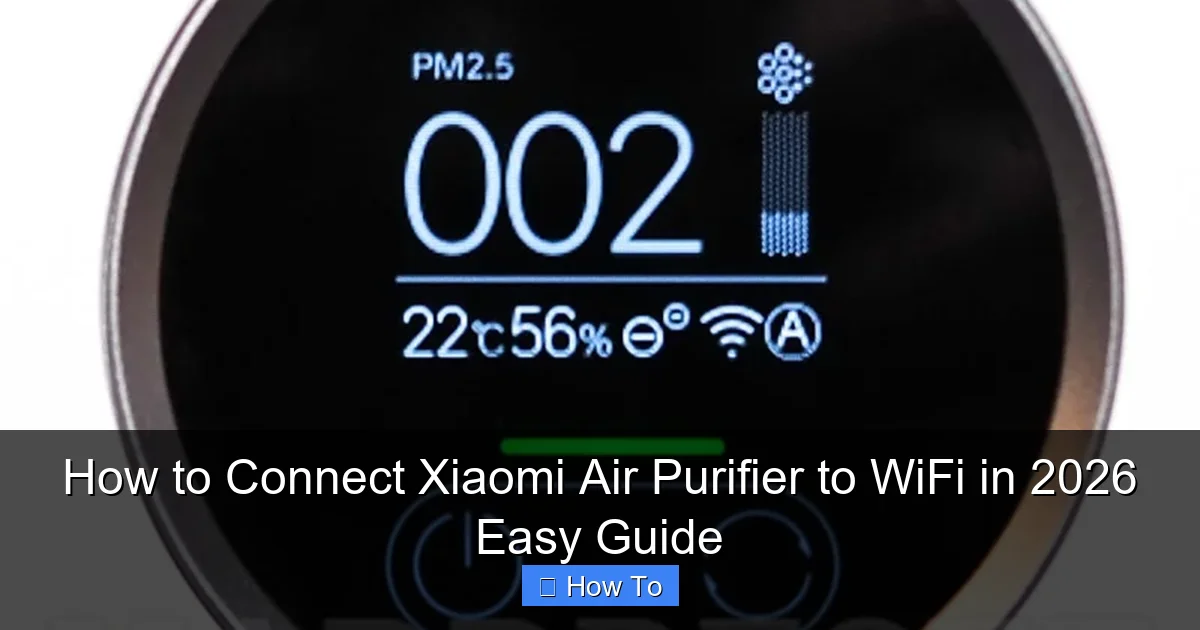
Meanwhile, your purifier’s indicator light will blink slowly (usually blue or white). This is normal. It’s talking to the app and the cloud.
Don’t touch anything. Don’t close the app. Don’t restart your phone. Just wait.
If it works, you’ll see a success message: “Device added successfully!” The light will turn solid or stop blinking.
If it fails, the app will say something like “Connection failed” or “Check network.” Don’t worry—we’ll fix that in the pro tips section.
Step 5: Name Your Device and Set Up Preferences
Once connected, the app will ask you to name your purifier. I called mine “Living Room Air Hero”—because why not?
You can also assign it to a room (e.g., Bedroom, Kitchen, Nursery). This helps if you have multiple purifiers.
Now, explore the app’s features:
- Air Quality Monitor: See real-time PM2.5, temperature, and humidity.
- Auto Mode: The purifier adjusts fan speed based on air quality.
- Manual Mode: Set fan speed from 1 to 3 (or 5 on Pro models).
- Timer: Schedule on/off times (great for bedtime).
- Child Lock: Prevent kids from changing settings.
- Filter Life: The app tracks usage and reminds you when to replace the filter.
You can also enable notifications for poor air quality or filter alerts.
Real Talk: I ignored the filter alert for two months. When I finally checked, the filter was black. The purifier was working, but not well. The app saved me from breathing dirty air.
Step 6: Test Remote Control and Integration (Optional)
Now, unplug your phone from the router and turn off WiFi. Use mobile data to test if you can control the purifier remotely.
Open the Mi Home app. If it shows your purifier and lets you change settings, you’re golden. If it says “Offline,” there’s a cloud connection issue.
For smart home fans: You can link your purifier to:
- Google Assistant: Say, “Hey Google, turn on the air purifier.”
- Alexa: “Alexa, set the air purifier to auto mode.”
- Apple HomeKit: Use the Xiaomi Home app to add it to the Home app (if supported).
To do this, go to Device Settings > Voice Control > Link to Alexa/Google. Follow the prompts.
Note: Not all models support all integrations. Check Xiaomi’s official list for compatibility.
Step 7: Move to Final Location (After Setup)
Once connected, you can move your purifier to its final spot—but keep these in mind:
- Keep it at least 1 foot from walls for airflow.
- Avoid placing it behind furniture or in corners.
- Don’t put it near heat sources (ovens, radiators).
- Ensure it’s within range of your WiFi (use a WiFi analyzer app if needed).
If the signal is weak, consider a WiFi extender or mesh system.
Pro Tips & Common Mistakes to Avoid
Even with the right steps, things can go sideways. Here’s what I’ve learned the hard way—and how you can avoid it.
- Use 2.4GHz, not 5GHz: This is the #1 reason setups fail. If your router uses a combined SSID (like “HomeWiFi”), split the bands in your router settings. Most modern routers let you do this under “Wireless Settings.”
- Check your WiFi password: I once spent 20 minutes troubleshooting because I typed “Pa$$w0rd” instead of “Passw0rd.” The app doesn’t validate passwords—it just tries to connect.
- Update the app and firmware: Before setup, go to the App Store/Play Store and update Mi Home. Also, check for firmware updates in the app under Device Settings > System Update.
- Restart your router and purifier: If the connection fails, power cycle both. Unplug the router for 30 seconds, then the purifier. Wait, then retry.
- Disable VPN or ad blockers: Some users report setup issues when using a VPN or apps like Blokada. Turn them off during setup.
- Use the right app: In 2026, Xiaomi rebranded some regions to use the Xiaomi Home app instead of Mi Home. If Mi Home doesn’t work, try the Xiaomi Home app.
- Don’t use special characters in your WiFi name: Avoid spaces, emojis, or symbols. Stick to letters, numbers, and underscores.
My Biggest Mistake: I once tried to connect my purifier while on a public WiFi network (coffee shop). It failed instantly. The purifier needs a stable, private network. Always use your home WiFi.
If the app says “Device not found,” try this:
- Reset the purifier (hold Power + Mode for 5 sec).
- Close and reopen the Mi Home app.
- Turn on airplane mode, then turn it off (resets your phone’s WiFi).
- Retry setup.
Still stuck? Try the “AP Mode” method:
- Reset the purifier.
- In the app, when it asks for WiFi, tap “Advanced” or “AP Mode.”
- Your phone will connect directly to the purifier’s hotspot (e.g., “miap_XXXX”).
- Enter your home WiFi details.
- Wait for the transfer.
This method is slower but more reliable for weak networks.
FAQs About How to Connect Xiaomi Air Purifier to WiFi in 2026 Easy Guide
Let’s answer the questions I get all the time—straight, no fluff.
Q: Can I connect my Xiaomi Air Purifier to 5GHz WiFi?
A: Nope. The purifier’s WiFi chip only supports 2.4GHz. If your router is dual-band, create a 2.4GHz guest network. It’s the only way. Trust me, I’ve tried.
Q: Why does my purifier show “Offline” in the app?
A: This usually means it lost connection to the cloud. Try: (1) Restart the purifier, (2) Check your WiFi, (3) Reconnect in the app under Device Settings > Network. If it’s still offline, reset and set it up again.
Q: Can I control the purifier without WiFi?
A: Yes! You can use the physical buttons to turn it on/off and change modes. But you’ll miss out on remote control, air quality data, and smart features. WiFi is worth the setup hassle.
Q: The app says “Connection Failed” after entering my password. What now?
A: First, double-check your password. Then: (1) Restart the app and purifier, (2) Ensure you’re on 2.4GHz, (3) Move closer to the router, (4) Try AP Mode (see above). If all else fails, reset your router.
Q: Does this work with all Xiaomi Air Purifier models?
A: Yes—2S, 3C, 4, Pro, Max, and newer 2026 models. The app and process are similar. Just make sure you select the correct model during setup.
Q: Can I connect multiple purifiers to the same app?
A: Absolutely. Add each one using the “+” button. You can name and group them by room. I have three—one for each bedroom and one in the living room.
Q: What if I change my WiFi password or network?
A: You’ll need to reconnect the purifier. Go to Device Settings > Network > Change WiFi. Follow the same steps as setup. It takes 2 minutes.
Final Thoughts
Connecting your Xiaomi Air Purifier to WiFi doesn’t have to be a headache. With the right tools, a little patience, and this How to Connect Xiaomi Air Purifier to WiFi in 2026 Easy Guide, you’ll be breathing cleaner air—and controlling your purifier from anywhere—in under 15 minutes.
Remember: 2.4GHz only. Reset if needed. Double-check your password. And don’t rush.
The best part? Once it’s connected, the app becomes your air quality watchdog. You’ll get alerts, track filter life, and even automate cleaning based on time or air quality. It’s not just a purifier—it’s a smart home essential.
If you run into trouble, don’t give up. Use the AP Mode, restart your gear, or try a different phone. I’ve fixed mine more times than I can count—and it always works in the end.
Now go ahead: Plug it in, open the app, and let your purifier breathe easy. You’ve got this.
Happy purifying—and even happier breathing.
“`